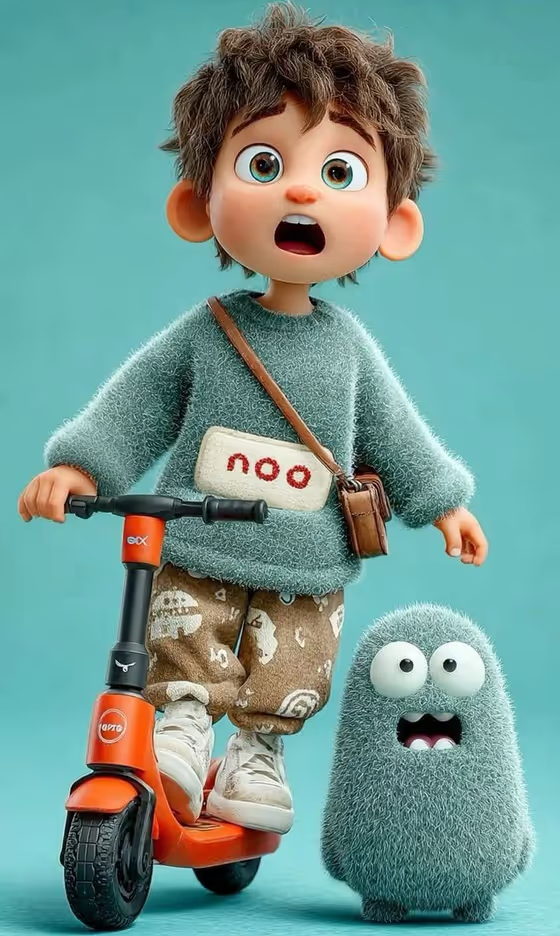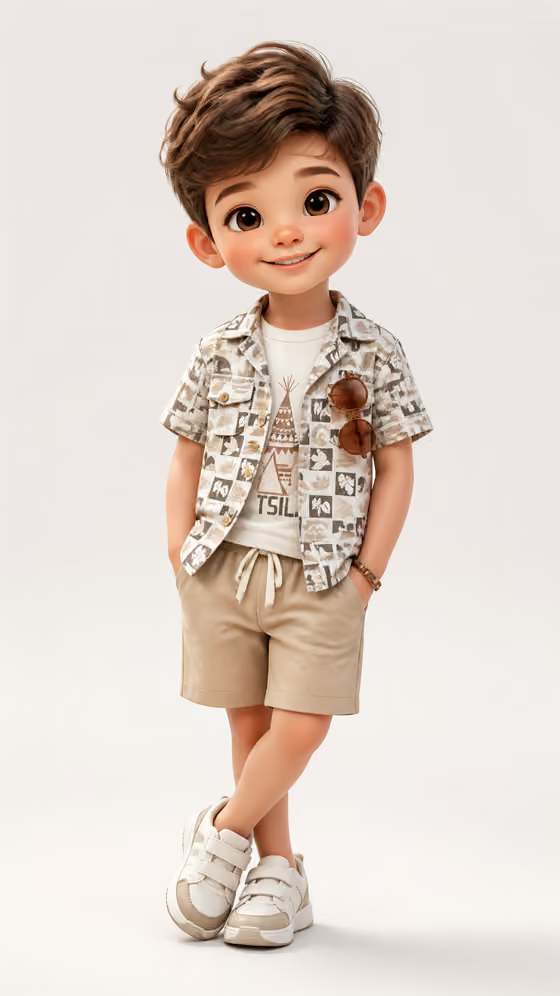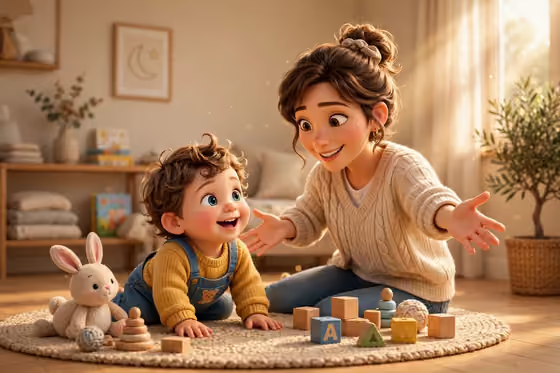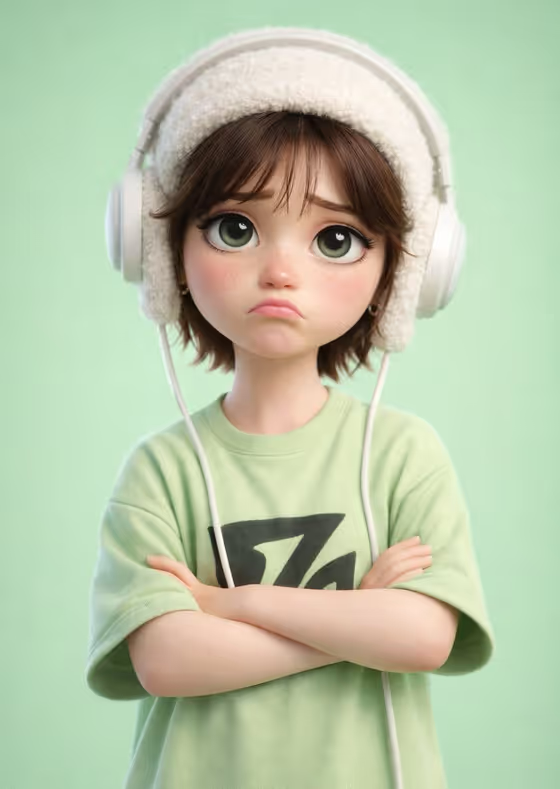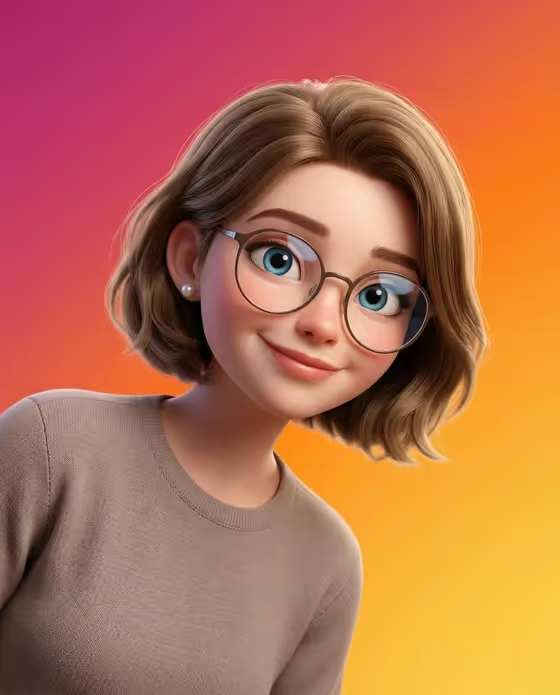
This template turns a person into a polished 3D animated-style portrait. The result is a 3:4 image with smooth skin, large blue eyes, round transparent glasses, a slight head tilt and a warm closed-mouth smile, set against a smooth gradient that runs from pink and magenta into orange and golden yellow.
It suits anyone who wants a friendly character-style avatar or profile picture. You describe the subject (or add a reference photo), pick a hairstyle and choose an outfit, and the template handles the lighting, background and character look for you.
What works best as input
- In the Subject field, either describe the person in a few words (the placeholder is "a young person") or add a reference image so the likeness and features carry over.
- Pick a reference photo that shows the face clearly, with even lighting and the head and shoulders in frame. Sharp, unobstructed faces give the model more to work with.
- The glasses, blue eyes and smile are fixed by the template, so you do not need to describe them. Focus on what is unique about the person, such as age range or distinctive features.
- If you use the Outfit slot with a garment reference, choose a picture where the clothing is easy to see and not hidden by other objects.
How to use it
- Open the Round Glasses 3D Portrait template in Phosphene.
- Fill in the Subject field with a short description of the person, or add a reference image of them.
- Choose a Hairstyle (Soft bob cut or Short styled hair) and an Outfit (Minimal sweater or Hoodie), or add a garment reference for the outfit.
- Generate the image, then review the portrait. Check that the face, hair and outfit match what you picked, and run it again with adjusted inputs if something is off.
Tips for a better result
- Try both Hairstyle options with the same Subject to see which one suits the face best.
- Switch between Minimal sweater and Hoodie to change the mood from calm and neutral to relaxed and casual.
- Keep the Subject description short and concrete. A clear phrase usually works better than a long list of details that may fight with the fixed styling.
- If a reference photo gives a result that does not feel like the person, try a different photo with a more direct, front-facing view.
Common mistakes
- Writing details about glasses, eye color or background in the Subject field. The template already fixes these, so extra instructions add little and can create conflicts.
- Using a dark, blurry or heavily angled photo, which makes it harder to preserve the person's features.
- Leaving a required field empty. Subject, Hairstyle and Outfit all need a value before you generate.
FAQ
Do I have to upload a photo?
No. The Subject field accepts a text description, but you can also add a reference image if you want the portrait to keep a specific person's identity and features.
Can I change the background colors?
The background is part of the template's fixed direction, a gradient from pink and magenta into orange and golden yellow, so it is not one of the fields you can change.
What hairstyles and outfits can I choose?
The Hairstyle options are Soft bob cut and Short styled hair. The Outfit examples are Minimal sweater and Hoodie, and you can also add a garment reference for the outfit.
What size is the image?
The output is a single image in a 3:4 aspect ratio, which suits portrait-style avatars and profile pictures.