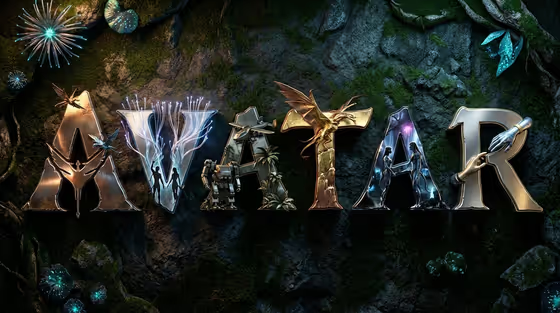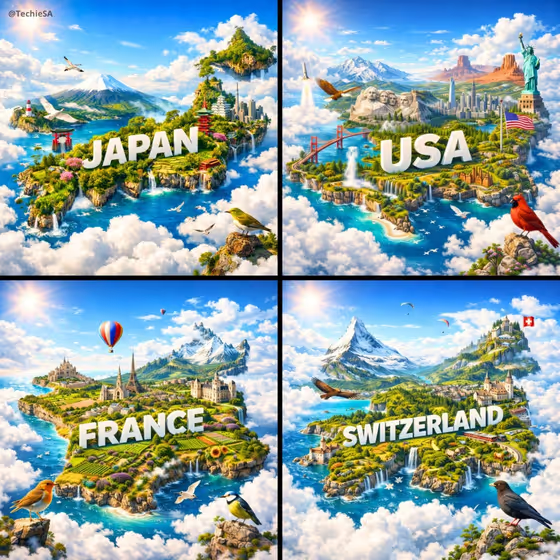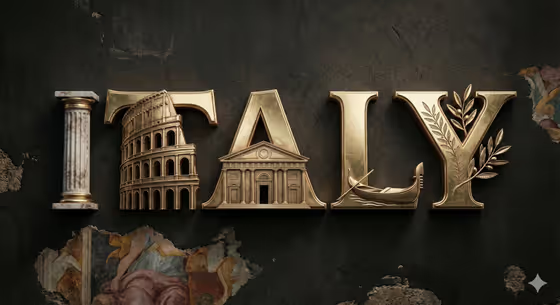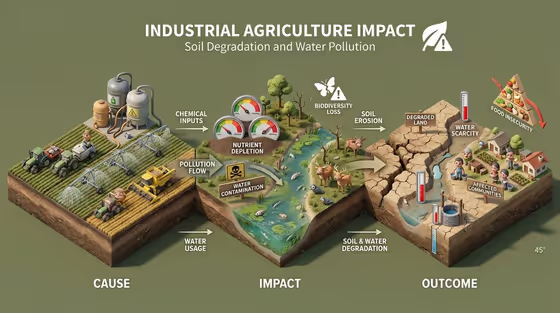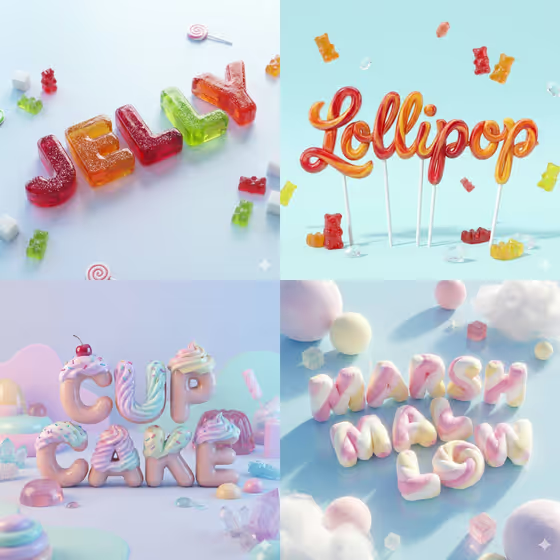
Candy Word Sculpture turns a short phrase into a glossy 3D lettering piece that looks like it was made from candy and placed in a small matching world. The cover image shows the idea well: JELLY in translucent gummy blocks, Lollipop in swirled hard-candy script, CUP CAKE with frosting and a cherry, and MARSHMALLOW in twisted pastel puffs.
It works for anyone who wants eye-catching typography without building a 3D scene by hand, such as social posts, posters, cards, or a playful title graphic. You only fill in two text fields, and the template handles the lighting, depth, and surrounding scenery.
What works best as input
- There is no photo upload here. Both fields are text, so all of your control comes from the words you type.
- In Phrase, type the exact wording you want shown, since the template renders that phrase as written. Short words and two-word phrases keep the letters large and readable, as in the cover examples.
- Pick a phrase that suggests a sweet or food-like theme. The template adapts the candy style to the word, so JELLY looks like gummies and CUP CAKE gets frosting.
- In Material Finish, describe the look you want in a few words, like the placeholder 'Polished metallic lettering' or the examples 'A playful expressive variation' and 'A bold contemporary variation'.
- Check your spelling before generating, because any typo will be sculpted into the letters.
How to use it
- Open the Candy Word Sculpture template in Phosphene.
- Type your text into the Phrase field, using the exact wording you want to appear in the image.
- Fill in Material Finish with a short description of the finish, or start from one of the example phrases and adjust it.
- Generate the image, then review the 3:4 result and check that the letters are spelled correctly and clearly readable.
Tips for a better result
- Try the same phrase with different Material Finish entries to compare looks, for example a refined classic variation against a playful expressive one.
- Use a word that matches a candy type if you want a strong theme, like a jelly, lollipop, or marshmallow word, so the sculpture and its miniature world feel consistent.
- Keep the phrase short. Fewer letters give each one more detail and room, which helps the glossy textures show up.
- If a result is close but not right, change only the Material Finish wording and regenerate so you can see what that one change does.
Common mistakes
- Writing a long sentence in Phrase. Letters get smaller and harder to read, so a word or short phrase works better.
- Leaving Material Finish vague or empty of detail. A clear finish description gives the render a direction to follow.
- Expecting to upload a logo or photo. This template only takes text, so the lettering is generated from your words.
FAQ
Do I need to upload a photo?
No. The template has two text fields, Phrase and Material Finish, and no photo input.
What should I type in Material Finish?
Describe the finish in a short phrase. The placeholder is 'Polished metallic lettering', and the examples include a refined classic, a bold contemporary, and a playful expressive variation.
Will it look like the candy words on the cover?
It aims for the same style: glossy 3D lettering shaped like candy, with soft shadows and a minimal candy-themed setting. The exact candy type adapts to your word, so results will vary.
What shape is the output?
The output is a single image in a 3:4 aspect ratio.