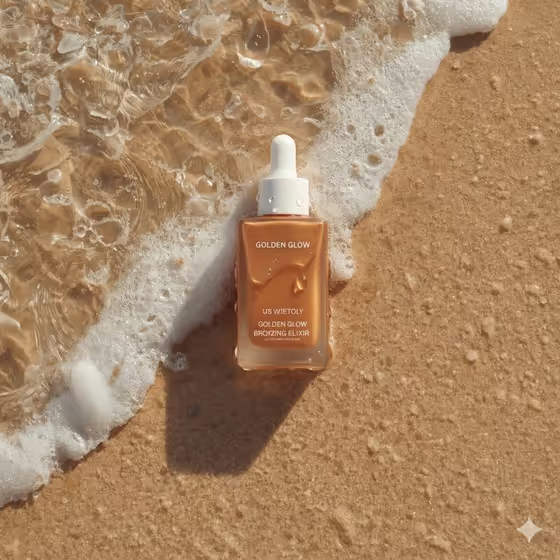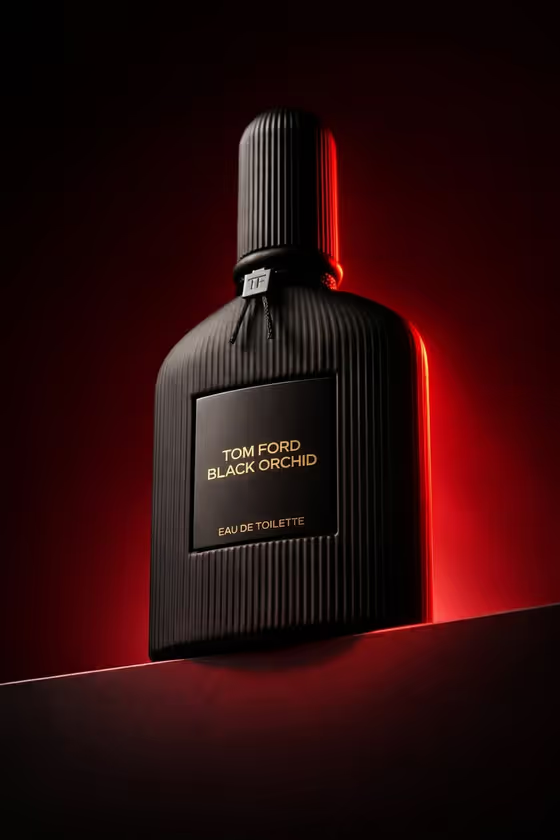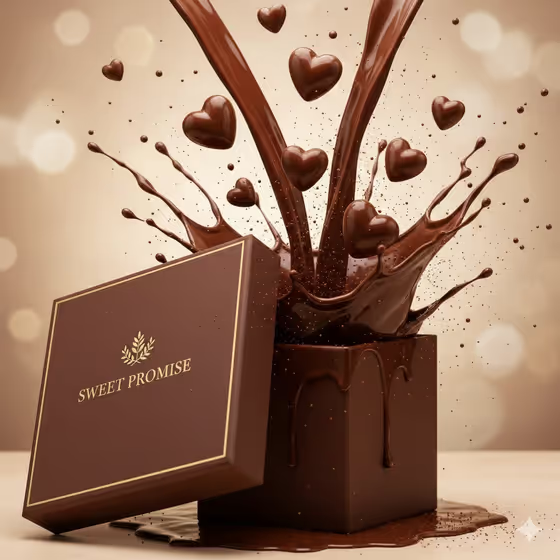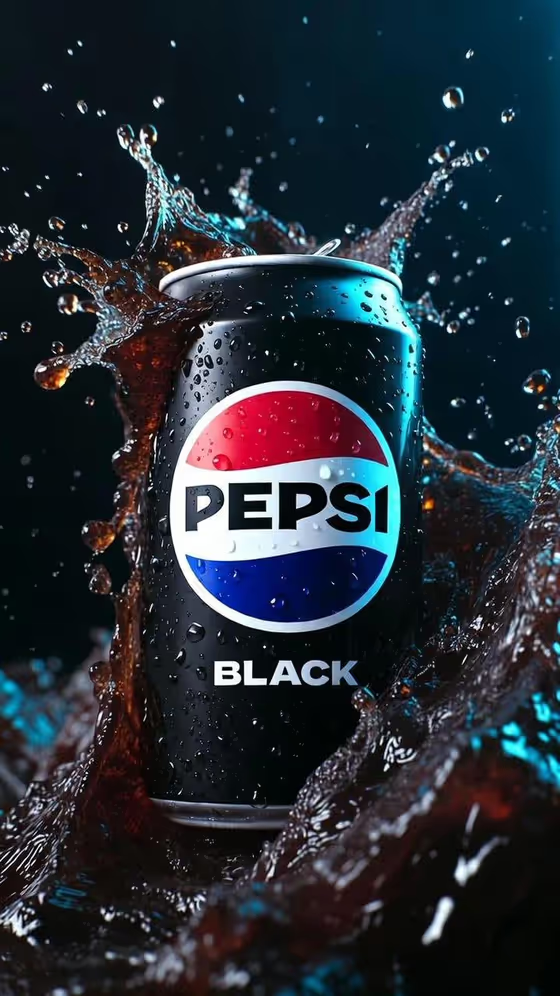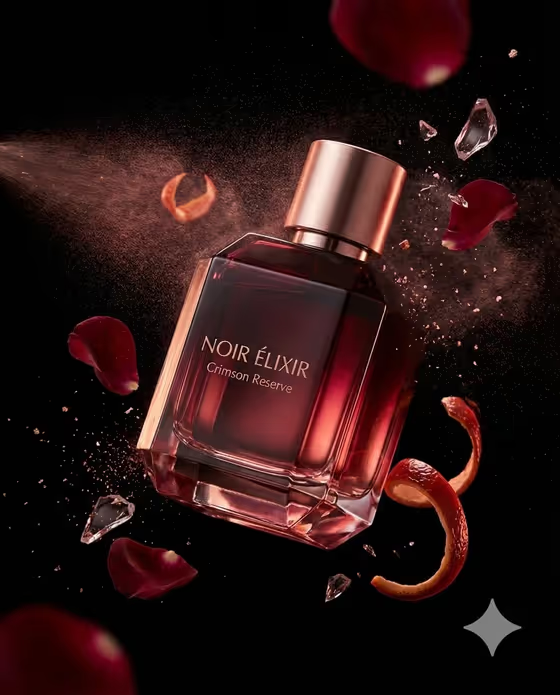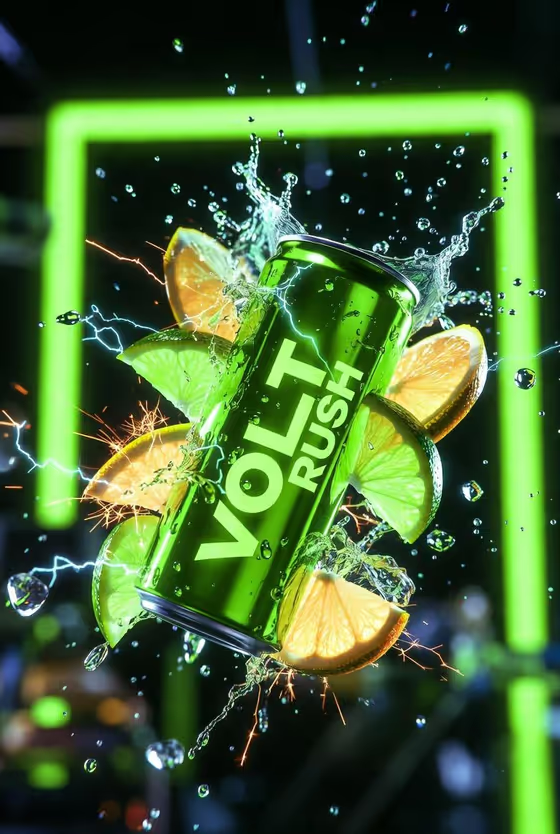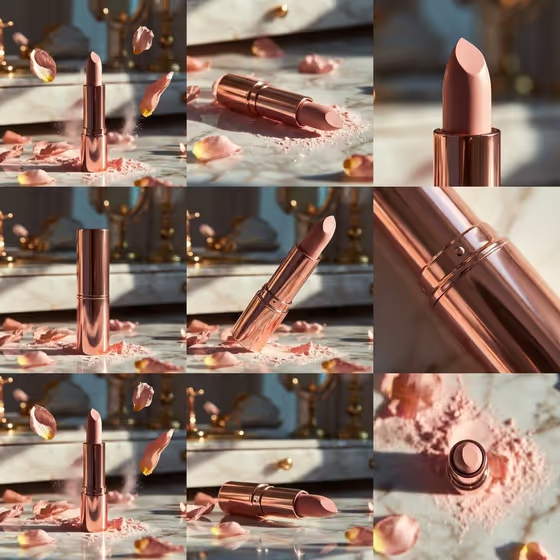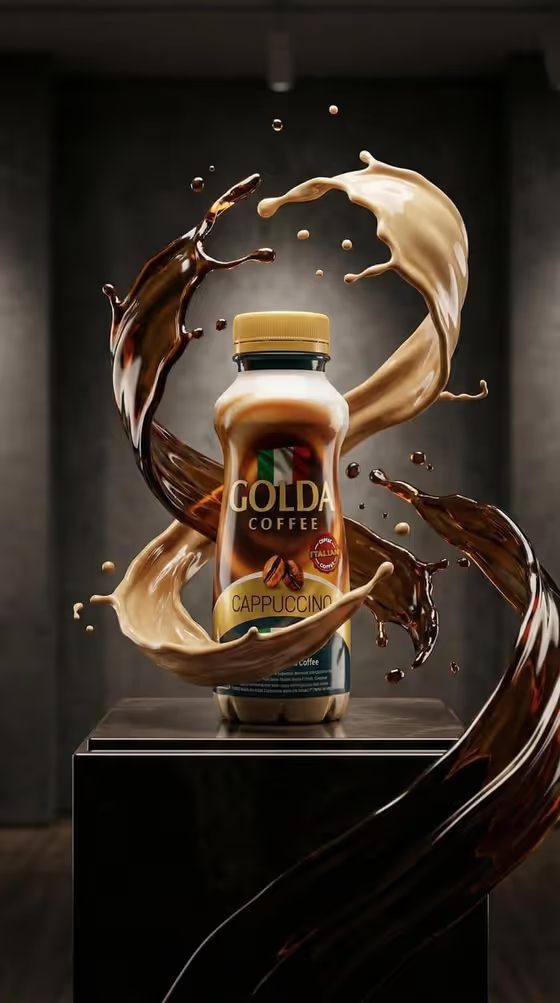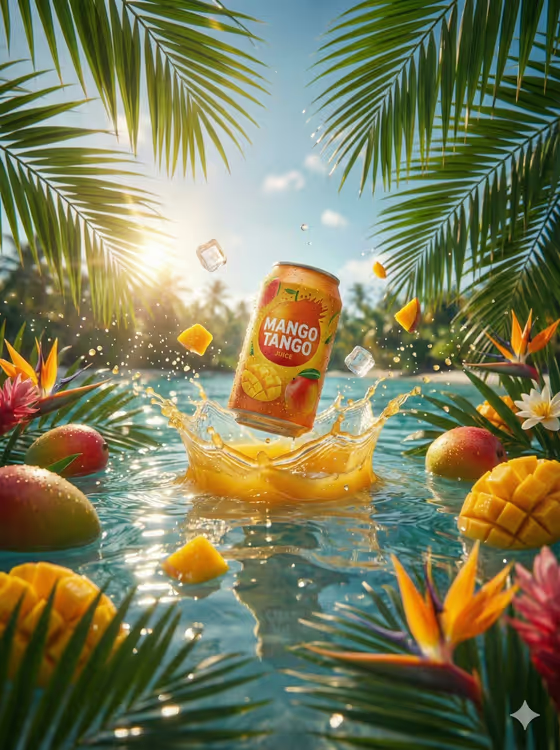
Tropical Splash Can turns a beverage into a bright campaign-style image: a cold can bursting out of clear turquoise ocean water, wrapped in a splash of colored liquid and surrounded by floating fruit, ice and tropical flowers. The result is a 3:4 portrait image, framed by palm leaves with a sunny beach softened in the background.
It suits anyone who needs a lively product visual for a drink, such as small beverage brands, shop owners, social media managers or designers mocking up a flavor concept. You describe the product, pick the flavor ingredients and the splash color, and the template handles the composition.
What works best as input
- For the Beverage product field, either describe the drink in words or add a photo of the exact product. A photo helps when you want your real label and can shape to be recognized.
- If you type a description, include the container type and the label text, like the example 'a mango juice can labeled MANGO TANGO'. Short, clear label text is easier to keep crisp.
- Use a sharp, well-lit product photo with the whole can or bottle visible and the label facing the camera. Avoid heavy glare, cropped edges or busy backgrounds behind the product.
- Keep to one product per generation. The template centers a single beverage, so a photo with several items can confuse the result.
How to use it
- Open the Tropical Splash Can template in Phosphene.
- In Beverage product, describe your drink or add your product photo. The field accepts either.
- Choose a Flavor ingredients option (for example Mango cubes and whole mangoes or Lime wedges and mint) and a Splash color (for example Golden tropical juice or Coral pink fruit splash).
- Generate the image, then check the label, the splash and the fruit placement. Adjust your inputs and generate again if something is off.
Tips for a better result
- Match the flavor ingredients to the drink. A mango can with Mango cubes and whole mangoes reads as one coherent story, like the cover example.
- Pick a splash color that echoes your label. Golden tropical juice suits warm yellow and orange packaging, while Crystal turquoise water or Electric citrus green suit cooler designs.
- Try different pairings with the same product, such as Pineapple chunks and leaves with Coral pink fruit splash, to produce several variants for a campaign.
- Name the exact flavor and wording in the product description so the label stays legible and the fruit cues stay consistent.
Common mistakes
- Writing a vague product description like 'a drink'. Without a container type and label text, the can can come out generic.
- Choosing flavor ingredients that contradict the product, such as lime and mint around a mango drink, which makes the image feel confusing.
- Uploading a blurry, dark or heavily reflective product photo, which makes the label harder to keep sharp.
FAQ
Do I have to upload a photo?
No. The Beverage product field accepts a text description or a product photo, so you can type something like 'a sparkling citrus can' instead.
What can I customize?
You choose the beverage, the Flavor ingredients and the Splash color. The ocean setting, palm framing, ice and backlight are part of the template's fixed direction.
Will my label text appear correctly?
The template aims to keep the label crisp and unobstructed by fruit or liquid. Clear label text in your description or a sharp product photo gives it the best chance, but check the result before using it.
What shape is the output?
It is a single image in a 3:4 portrait ratio, suited to vertical placements.