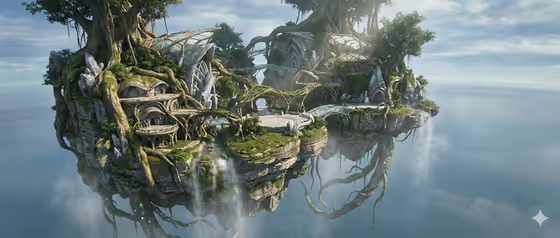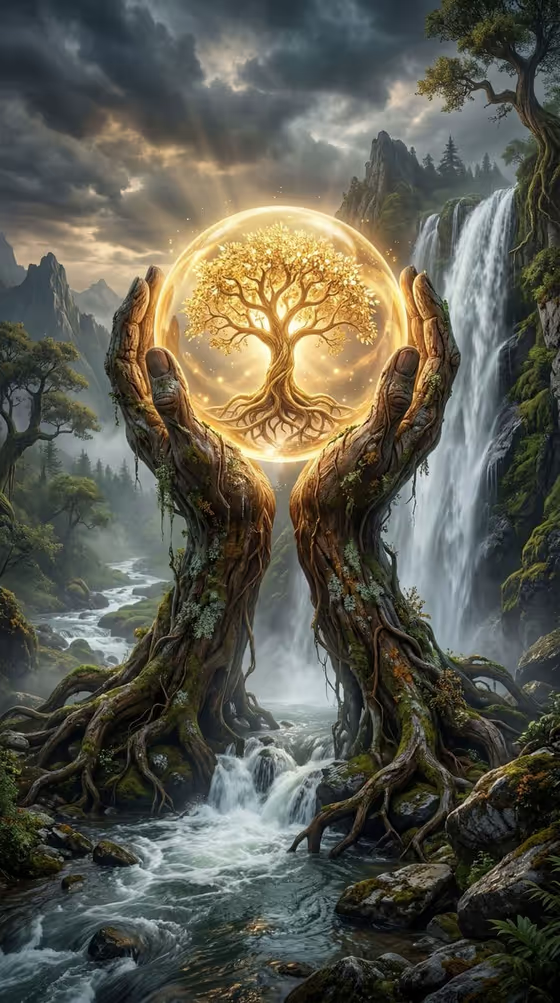
Tree Of Life Orb creates a high fantasy landscape built around one ancient tree. Thick, twisting roots grip mossy rocks beside a foaming stream, a tall waterfall drops down a misty cliff behind it, and a glowing golden orb holds a detailed tree silhouette at the center of the scene.
It suits fantasy fans, tabletop and worldbuilding projects, and anyone who wants a dramatic wallpaper or story illustration. You describe the main subject, or add a reference, and choose how the scene is framed. The lighting, mood and detailed texture stay consistent with the template's look.
What works best as input
- In the subject field (ancient tree of life scene subject or object), describe the thing at the heart of the scene in a short phrase, such as the default idea of an ancient tree of life. Keep it to one clear subject so the orb and waterfall composition stays readable.
- If you add a photo, choose a reference of the exact subject or object you want in the scene, with the shape clearly visible and the background uncluttered.
- Name features that matter, like twisted roots, bark texture, or a particular kind of tree, since the template builds the roots, stream and canopy around your subject.
- Stay close to a single concept. Original subjects that fit the same mystical world, such as a personal visual concept, tend to blend more naturally than unrelated items.
How to use it
- Open the Tree Of Life Orb template in Phosphene.
- In the subject field, type a short description of your subject or add a photo reference of it.
- Pick an option for Scene framing to decide whether you want a wide environmental view, a medium narrative frame, or a close detail study.
- Generate the image, then review the result and adjust your subject text or framing to try another version.
Tips for a better result
- Try the wide environmental view if you want the waterfall, cliffs and sky to show clearly, and the close detail study if you care more about bark, moss and the glowing orb.
- Keep the subject wording simple and visual. Concrete words like ancient, gnarled or mossy give the roots and bark more to work with.
- Generate a few versions with the same subject but different Scene framing choices to compare how much of the landscape appears.
- Use the template's own example ideas, like an original subject in the same world, as a starting point and then swap in your own detail.
Common mistakes
- Writing a long, multi-part description in the subject field. The scene is built around one central subject, and too many competing ideas can muddy the orb and tree composition.
- Uploading a cluttered or unclear photo. A reference where the subject is hard to make out gives the template little to anchor the roots and canopy to.
- Expecting the look to change completely. The cinematic lighting, high fantasy style and golden orb are fixed, so your input shapes the subject and framing, not the overall style.
FAQ
Do I have to upload a photo?
No. The subject field accepts a typed description, and a photo is optional if you want to show the exact subject or object you have in mind.
What does Scene framing change?
It controls how the finished image is composed, for example a wide environmental view, a medium narrative frame, or a close detail study.
Can I change the glowing orb or the waterfall?
Those parts are part of the template's fixed look. You steer the result through your subject and the framing choice.
What kind of image does this produce?
A single fantasy image in 16:9 with a tree, a stream, a waterfall and one warm golden orb lighting the scene.