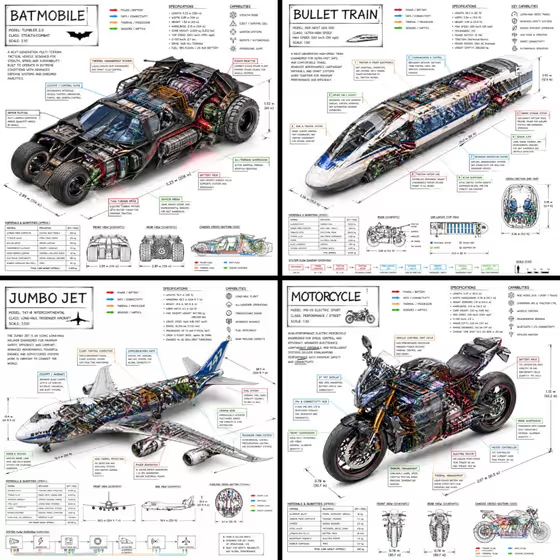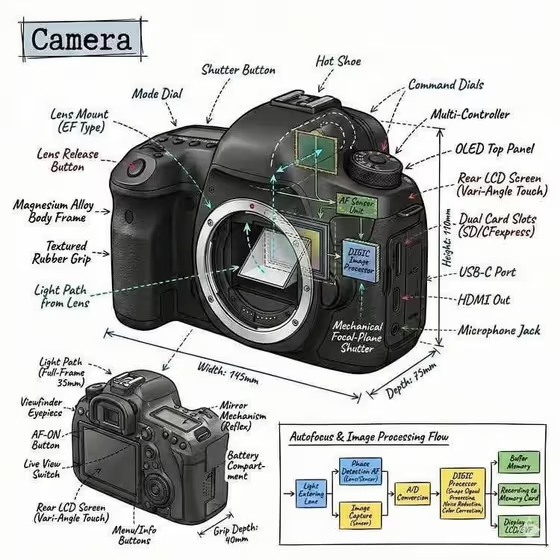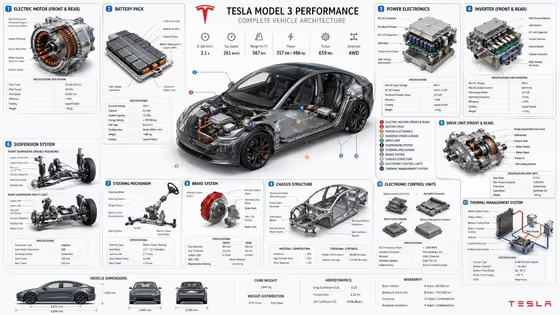
Vehicle Components Atlas turns a car or EV into a labeled technical poster. You get a complete cutaway of the vehicle in the middle, surrounded by enlarged panels for systems such as the battery, motors, brakes, thermal system, sensors, cabin electronics and body structure, all linked back to their locations with thin connector lines.
It suits car enthusiasts, students, designers and content creators who want an engineering-style infographic without drawing one by hand. The output is a 3:4 image, so it works well as a poster or a tall social post. Treat it as an illustrated explainer, not as an official engineering reference.
What works best as input
- In the Vehicle product or model field, a specific name such as "Tesla Model 3" gives the clearest result, since the layout and component placement are built around that vehicle.
- If you don't know the exact model, describe the type instead, for example "compact city EV" or "electric performance SUV". The template's own examples show this works.
- You can attach a reference photo of the vehicle for this field. Pick a clear, well-lit shot where the whole car is visible, ideally from the side or a three-quarter angle.
- If you upload a photo, keep the field text consistent with it (for example the same model name) so the atlas and the reference don't pull in different directions.
How to use it
- Open the Vehicle Components Atlas template in Phosphene.
- In Vehicle product or model, type the model or describe the vehicle type, and add a reference photo if you have one.
- Set Systems focus to the area you care about, such as battery and powertrain, chassis and suspension, interior electronics or full vehicle architecture.
- Generate the image, then check the labels, panel layout and component placement before saving or sharing.
Tips for a better result
- Match the focus to your goal. "Battery and powertrain" suits an EV explainer, while "chassis and suspension" suits a mechanical breakdown.
- Choose "full vehicle architecture" when you want the broadest poster with panels for many systems, like the example cover.
- Try the same vehicle with a different Systems focus to build a small series of atlases from one model.
- Run a generic description like "compact city EV" next to a named model to compare how much the specifics change the layout.
Common mistakes
- Using a vague entry like "car" in the vehicle field. The atlas depends on a recognizable model or clear vehicle type to place components sensibly.
- Uploading a cropped or heavily angled photo that hides most of the vehicle, which gives the template little to work from.
- Treating the labels and numbers as verified specs. Always double-check technical details before using the image for anything that needs accuracy.
FAQ
Do I have to upload a photo?
No. The vehicle field accepts typed text, and a photo is an optional reference you can add instead of or alongside the description.
What can I put in Systems focus?
It is a choice field. Examples include battery and powertrain, chassis and suspension, interior electronics and full vehicle architecture.
Can I use a vehicle that isn't a well-known model?
Yes. Describe it by type, such as "electric performance SUV" or "my vehicle model", or add a clear reference photo.
What format does the result come in?
A single 3:4 image with a central cutaway, surrounding detail panels and short English labels.