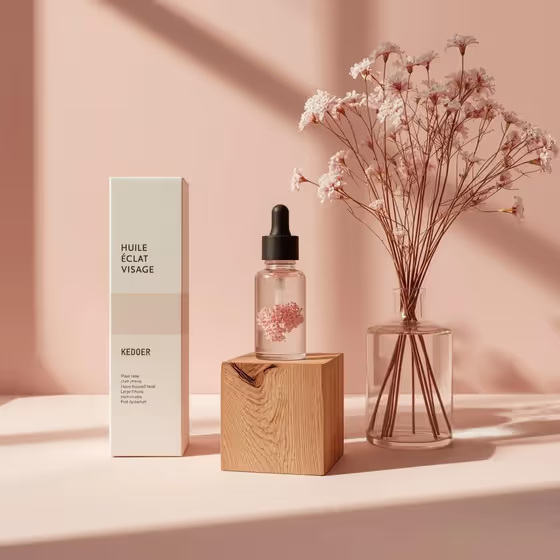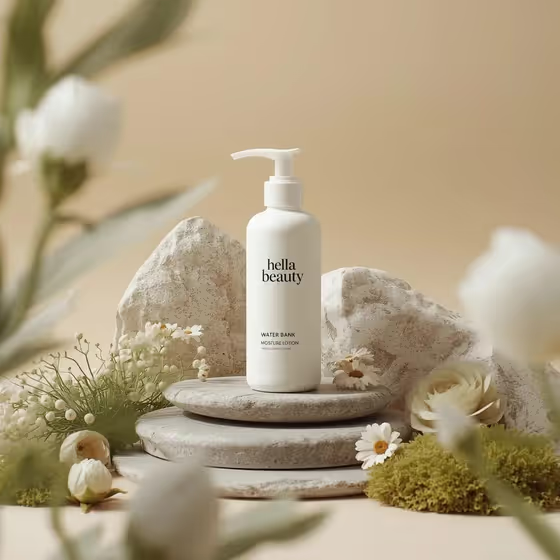
Botanical Stone Skincare places your skincare bottle, tube or jar upright on layered natural stone, surrounded by moss and white flowers. The result is a calm, balanced product photo with a warm beige background and soft, diffused daylight from the upper left, in a 3:4 image.
It suits skincare brands, small shops and anyone who needs a natural, spa-like product shot without building a physical set. You describe or upload the product, choose the botanical setting, and the template handles the arrangement and lighting.
What works best as input
- For the Skincare product or package field, you can type a short description (for example, matte white lotion pump) or upload a photo of your actual product as the reference.
- If you upload a photo, pick one where the package is upright, fully in frame and evenly lit so the shape and label are easy to read.
- Describe material and color when typing, such as frosted serum dropper or soft beige cream tube. Specific details help the bottle look right on the stone.
- Use one product per image. The template is built around a single package centered on the stones.
- Browse the examples under Botanical stone set, including river stones with moss and white flowers, sandstone with fern and sage rose, or pale rock with lichen and chamomile, and pick the one that suits your brand mood.
How to use it
- Open the Botanical Stone Skincare template in Phosphene.
- In Skincare product or package, type a description of your product or upload a reference photo of it.
- In Botanical stone set, choose the stone and plant combination you want around the product.
- Generate the image, then check the package shape, label area and stone arrangement, and adjust your inputs if something looks off.
Tips for a better result
- Try the different botanical sets with the same product to get a small series of images with a consistent warm-beige look.
- Name the product's finish (matte, frosted, glossy) so the soft daylight reads naturally on its surface.
- Choose a set whose colors complement your packaging: sage and white accents sit well with white or beige containers.
- If the first result changes your package too much, simplify your description or use a clearer reference photo and generate again.
Common mistakes
- Uploading a cluttered or dark photo where the package is cropped or hard to see, which makes it harder to keep the shape and label accurate.
- Writing a vague product description like skincare, instead of naming the type, color and finish.
- Expecting readable small print. Fine label text may not come out exactly, so check the result before using it commercially.
FAQ
Do I have to upload a photo?
No. The product field accepts a typed description, and you can also upload a matching reference photo if you want the result to follow your real package.
Can I change the stones and flowers?
Yes. The Botanical stone set field lets you choose the combination, with examples like river stones and moss, sandstone and fern, or pale rock and chamomile.
What size is the image?
The template produces a 3:4 image.
Will the lighting and background stay the same?
The template keeps a warm-beige gradient background with soft, diffused light from the upper left, so your images stay consistent while the product and botanical set change.