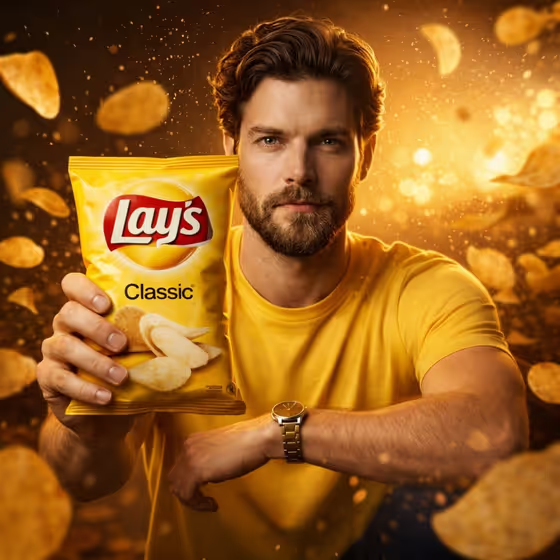
This template builds a fashion-styled advertising photo around a single snack packet. A man holds the packet toward the camera while chips and seasoning particles fly around him in slow motion, and his outfit and the background take their colors from the flavor you name. The cover shows the idea: a yellow Classic packet, a matching yellow t-shirt, and a warm golden backdrop.
It suits anyone mocking up a flavor campaign, testing how a new flavor name might look on a packet, or making a bold concept visual for a snack product. You fill in three fields (Product, Flavor Name, Material Finish) and get a 3:4 image.
What works best as input
- In the Product field you can type a description or add a photo as an exact visual reference. A clear, well-lit photo of the packet or design with the front face fully visible gives the template something precise to follow.
- Type the Flavor Name exactly as you want it to appear on the packet, for example the full flavor wording with correct spelling. This field takes text only, so no photo is needed there.
- Keep the flavor name short and specific. A concrete flavor gives the template clearer color and background cues, such as spices for a hot flavor or greens for a creamy one.
- For Material Finish, describe how the lettering should look, such as polished metallic lettering. A few precise words work better than a long sentence.
How to use it
- Open the Chips Packet Flavor Campaign template in Phosphene.
- Fill in Product with a short description or a reference photo, then type the exact Flavor Name.
- Enter a Material Finish for the lettering, or pick one of the example ideas such as polished metallic lettering or a bold contemporary variation.
- Generate the image, then check the packet text, the hand grip, and the color match between outfit and background before saving or trying another variation.
Tips for a better result
- Run the same product with different flavor names to see how the outfit, background, and lighting shift to match each theme.
- Change only the Material Finish between runs (for example metallic versus a playful expressive variation) to compare lettering styles on an otherwise similar scene.
- If you add a reference photo for Product, choose one with a plain background so the packet shape and design read clearly.
- Pick flavor names that suggest a clear color family, since the template matches the outfit and mood to the packet palette.
Common mistakes
- Misspelling the Flavor Name or adding extra words, which can lead to wrong or cluttered text on the packet.
- Writing a vague Product description, which gives the template little to anchor the packet design to.
- Stacking several finishes or ideas into Material Finish, which can muddy the lettering instead of giving it one clear look.
FAQ
Do I have to upload a photo?
No. Only the Product field accepts a photo, and it also works with a text description. Flavor Name and Material Finish are text only.
What shape is the result?
The output is a single image in a 3:4 portrait ratio.
What does Material Finish control?
It sets the finish of the lettering in the composition, such as polished metallic lettering or a refined classic variation.
Why do the outfit and background change with the flavor?
The template is built so the man's clothing and the setting match the packet's color palette and the flavor theme, so a different flavor name leads to a different look.