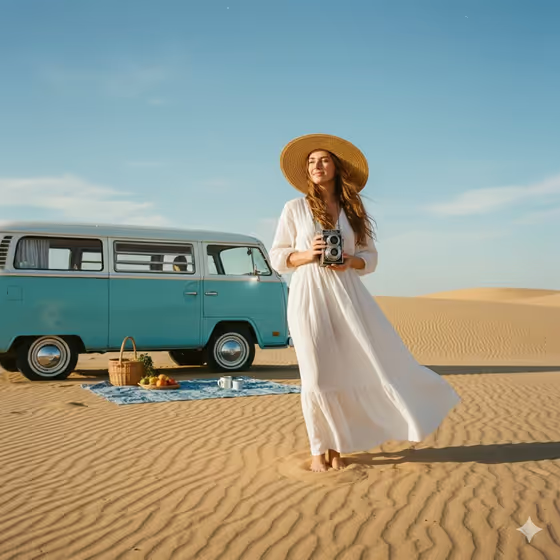
Desert Camper Portrait places your subject in a bright, wind-rippled desert beside a classic light-blue camper van. The scene includes a picnic spread on a blue blanket, a clear sky, and a vintage camera held in the hands, giving the image a relaxed bohemian travel feel.
It suits anyone who wants a travel-style portrait for a profile picture, a journal-style post, or a mood board. You describe or upload your subject, choose how the shot is framed, and the template handles the desert, van, wardrobe and light.
What works best as input
- The first field, bohemian traveler portrait subject, accepts either a text description or an uploaded photo. If you use a photo, pick one where the person is clearly visible and well lit.
- A sharp, front-facing or three-quarter photo with the face unobstructed gives the template the most to work with. Avoid heavy shadows, sunglasses or hats that hide the face.
- If you describe instead of upload, keep it short and concrete, like the placeholder 'a bohemian traveler'. The template adds the dress, straw hat and camera itself, so you do not need to describe clothing.
- Only one subject is expected. A photo with a single person and an uncluttered background is the safest choice.
How to use it
- Open the Desert Camper Portrait template in Phosphene.
- In the bohemian traveler portrait subject field, type a short description or upload a photo of your subject.
- Open the Pose and scene dropdown and choose a framing, for example the wide shot, an intimate close portrait, a full-body editorial frame or an environmental candid frame.
- Generate the image, then review it. Check the face, the camper van and the sand, and run it again with a different framing if you want another take.
Tips for a better result
- Try the different Pose and scene options on the same subject. A wide frame shows off the van and dunes, while a closer frame puts the focus on the person.
- Use one clear, well-lit photo rather than several attempts with mixed quality. A clean source gives a more consistent likeness.
- If a result is close but not right, change only one thing at a time, either the subject input or the framing, so you can see what made the difference.
- Try the example subjects such as 'an editorial portrait subject' or 'a candid everyday subject' to see how the scene adapts to a different tone.
Common mistakes
- Writing a long outfit or location description in the subject field. The dress, hat, camera, van and desert are already built into the template, so extra details can pull against them.
- Uploading a blurry, tiny or heavily filtered photo, which makes it harder to keep the subject recognizable.
- Picking a framing without checking the preview of the result, then assuming the template failed. A close portrait will show far less of the camper van and desert than the wide shot.
FAQ
Do I have to upload a photo?
No. The subject field accepts a text description or a photo, so you can type something like 'a bohemian traveler' instead.
Can I change the dress or the van color?
The white linen dress, straw hat, vintage camera and light-blue camper van are part of the template's fixed look. You choose the subject and the framing.
What does the Pose and scene option change?
It controls how the image is framed, such as a wide shot, a close portrait, a full-body editorial frame or an environmental candid frame.
What format is the result?
The template makes a single image in a 16:9 aspect ratio.