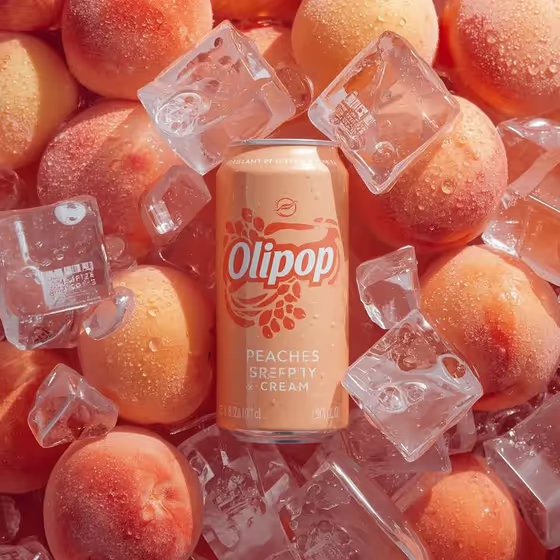
This template builds a chilled beverage-can hero shot in a 3:4 frame. The can stands upright in the center, with fresh fruit packed around its base and large clear ice cubes stacked around the upper part, covered in condensation droplets and frost.
It suits anyone who needs a cold, appetizing product visual: small beverage brands testing a flavor concept, designers building a campaign mockup, or creators who want a soda-can image with a fruit-and-ice theme. You supply the drink, the name on the label, and the fruit, and the template handles the styling.
What works best as input
- For Drink Product, you can type a short description such as the example "peach cream soda can" or upload a visual reference. A clear photo of the can or a simple packaging sketch gives the template something concrete to follow.
- If you upload a reference, use one with the can fully visible and evenly lit, so the shape and colors are easy to read.
- If you describe it in text instead, name the flavor and the container together (for example "lemon sparkling water can"), since the template expects a can.
- Drink Name is text only, so type the exact wording you want on the label, such as PEACHES & CREAM. Short names tend to be easier to keep sharp on the package.
- Fruit Surround is a text field, so name the fruit and its form, like "whole peaches", "lemon wedges", "dark cherries" or "sliced pears".
How to use it
- Open the Iced Fruit Soda Campaign template in Phosphene.
- Fill in Drink Product by typing a description or adding a reference photo, then type your label text in Drink Name.
- Enter the fruit you want around the can in Fruit Surround, keeping it consistent with the flavor of the drink.
- Generate the image, then check the label, the ice and condensation, and the fruit placement. Adjust your fields and run it again if something is off.
Tips for a better result
- Match the fruit to the flavor. The cover example pairs a peach cream soda with whole peaches, and the same logic works for lemon, cherry or pear.
- Pick a drink name with a similar look. Short, all-caps names like LEMON LIFT or CHERRY FIZZ match the examples and are easier to read on the can.
- Try a different fruit form for a different look: whole fruit, wedges or slices change how the base of the shot is packed.
- Change one field at a time when you rerun, so you can see what each input does to the result.
Common mistakes
- Choosing a fruit that does not match the drink flavor, which makes the can and its surroundings feel disconnected.
- Writing a very long drink name, which can make the label text harder to keep clean and centered.
- Describing something other than a can in Drink Product, since the template is built around an upright can with ice and fruit around it.
FAQ
Do I have to upload a photo?
No. Drink Product accepts either a typed description or a visual reference, so you can type something like "cherry cola can" instead.
Can I upload photos for the drink name or fruit?
No. Drink Name and Fruit Surround are text fields, so you type those in.
What shape and format does the result come in?
The template produces a single image in a 3:4 aspect ratio.
Can I change the layout, like moving the can off center?
The direction is fixed: the can stays upright and centered, with fruit at the base and ice cubes stacked around the top. You can change the drink, the label name and the fruit.