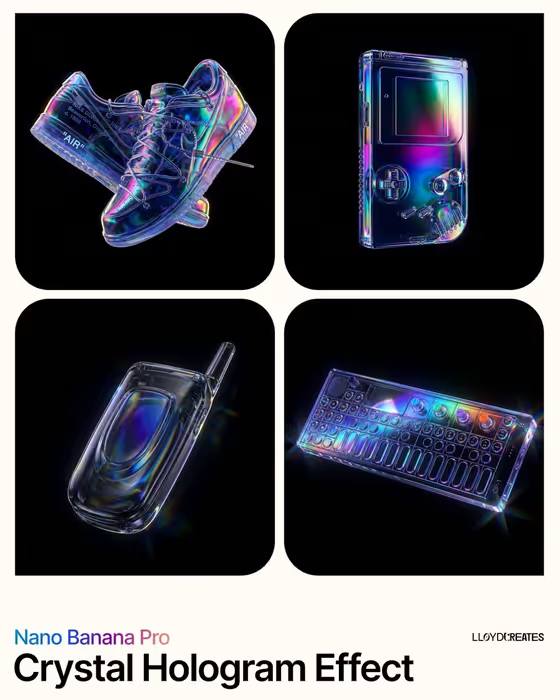
This template turns a single product into a glossy, translucent obsidian-glass object with iridescent highlights, floating in the center of a pure black frame. The cover shows how it plays out: a sneaker, a handheld console, a flip phone and a compact synth, each rendered as dark glass with colored light bending along the edges.
It suits product designers, brand owners, sellers and anyone who wants a dramatic hero image for a gadget, bottle, shoe or other object. You name the product (or give a visual reference) and choose a color palette, and the template handles the material, lighting and black background. The result is a 3:4 image.
What works best as input
- For the Hero Product field, you can either describe the item in words or add a photo as a visual reference. A single, clear photo of the product on its own works better than a busy scene.
- Pick a photo where the whole product is visible and its silhouette is easy to read. The template keeps the object centered and fully in frame, so a cropped or partially hidden item gives it less to work with.
- If you type instead, be specific about the object, as in the examples 'designer fragrance bottle' or 'compact camera'. Shapes with distinct details, like buttons, laces or a lens, tend to show up nicely in glass.
- Avoid references with heavy text, logos or cluttered backgrounds. The template removes text and props from the final image, so the cleaner the starting object, the cleaner the result.
How to use it
- Open the Iridescent Obsidian Product template in Phosphene.
- In Hero Product, type a short description of your item or upload a reference photo. The placeholder 'wireless speaker' shows the kind of wording that works.
- Choose or enter a Spectral Palette, such as 'electric blue and magenta' or 'cyan and ultraviolet'. This sets the color of the iridescent highlights.
- Generate the image, then review it for silhouette, edge glow and color. If it is not quite right, adjust the product wording or palette and run it again.
Tips for a better result
- Try the other palette examples to change the mood: 'emerald and hot pink' and 'amber and deep violet' give very different results from the default electric blue and magenta.
- Keep the palette to two clear colors. The template is built around a pair of spectral tones, and a short, simple pairing reads more cleanly on the dark glass.
- Vary the product while keeping the same palette to build a matching set, like the four-up layout on the cover.
- Choose objects with a recognizable outline. Sneakers, handhelds, phones and instruments in the cover all have strong shapes that the glass effect follows well.
Common mistakes
- Expecting a scene. The template always places the product alone on pure black with no floor, pedestal, props or text, so asking for a setting or background will not change that.
- Using a vague product description like 'thing' or 'gadget'. Without a clear object, the glass rendering has no distinct form to follow.
- Uploading a photo where the product is small, blurry or mostly cut off, which makes the final silhouette less accurate.
FAQ
Can I upload a photo of my product?
Yes. The Hero Product field accepts either a text description or a visual reference photo, and the template takes one upload.
Can I change the background?
No. The product is meant to levitate on pure black with no floor, platform or props, which is part of the look.
What does the Spectral Palette control?
It sets the colors of the iridescent highlights and edge glow on the obsidian glass. Examples include 'electric blue and magenta' and 'amber and deep violet'.
What shape is the output?
The template produces a single image in a 3:4 aspect ratio.