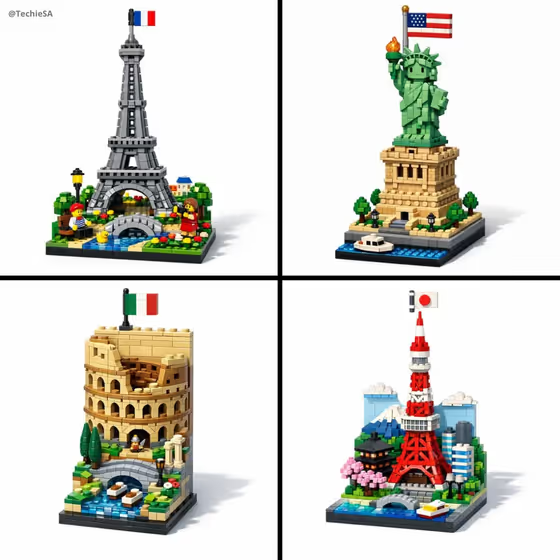
LEGO Landmark Display turns a famous building or monument into a small collectible diorama made entirely of visible LEGO-style bricks. The result is a vertical 3:4 image with a plain white background, a subtle shadow under the build and a small national flag on top, as in the Eiffel Tower, Statue of Liberty, Colosseum and Tokyo Tower examples on the cover.
It suits anyone who wants a toy-shelf version of a place they love: travel fans, teachers making geography visuals, or people designing a gift or social post. You pick the landmark and a brick palette, and the template handles the build style and presentation.
What works best as input
- In the Landmark field, you can type the landmark by name or add a reference photo. A name plus the country, such as the examples "the Eiffel Tower, France" or "the Taj Mahal, India", gives the clearest starting point.
- If you add a reference photo, pick one where the whole landmark is visible and easy to recognize, not cropped or hidden behind crowds or scaffolding.
- Choose a straight-on or slightly angled view so the main shape and silhouette read clearly, since the build is a vertical diorama of that shape.
- Be specific when a name could mean several things. "The Palace of Westminster" is clearer than just "parliament".
- Keep it to one landmark per generation. The cover shows one landmark per build, each with its own small base scene.
How to use it
- Open the LEGO Landmark Display template in Phosphene.
- In the Landmark field, type the landmark and its country, or add a reference photo of it.
- Open the Brick palette field and choose an option, such as Faithful landmark colors, Bright toy colors, Monochrome collector edition or Textured copper and ivory.
- Generate the image, then review it for the landmark's shape, the brick look, the flag and the clean white background. Adjust your inputs and generate again if you want a different result.
Tips for a better result
- Use Faithful landmark colors when you want the build to look like the real place, like the grey tower and green statue on the cover.
- Try Bright toy colors for a playful, kid-friendly look, or Monochrome collector edition for a more display-piece feel.
- Textured copper and ivory suits landmarks with warm stone or metal tones, and it is a good way to give a familiar landmark a different look.
- Generate the same landmark with different palettes to compare, then keep the one that reads best at a glance.
Common mistakes
- Typing only a vague word like "tower" or "castle". Without a name and country the template has to guess which landmark you mean.
- Using a cluttered reference photo with lots of people, cars or other buildings, which makes the main landmark harder to pick out.
- Expecting a flat poster or a full city scene. The template builds a single vertical brick diorama on a plain white background.
FAQ
Do I have to upload a photo?
No. The Landmark field accepts a typed description or a reference photo, so you can just type a name such as "the Petronas Towers, Malaysia".
Can I change the background?
The template is set up for a plain white background with a subtle grounding shadow, so the background is not something you choose.
Why is there a flag on the build?
A small national flag is part of the template's fixed look, like the flags above the towers and monuments on the cover.
What does the Brick palette change?
It sets the colors of the bricks, from Faithful landmark colors to Bright toy colors, Monochrome collector edition or Textured copper and ivory.