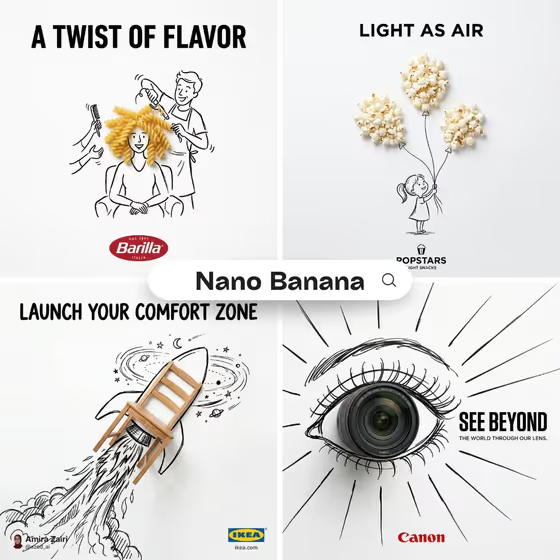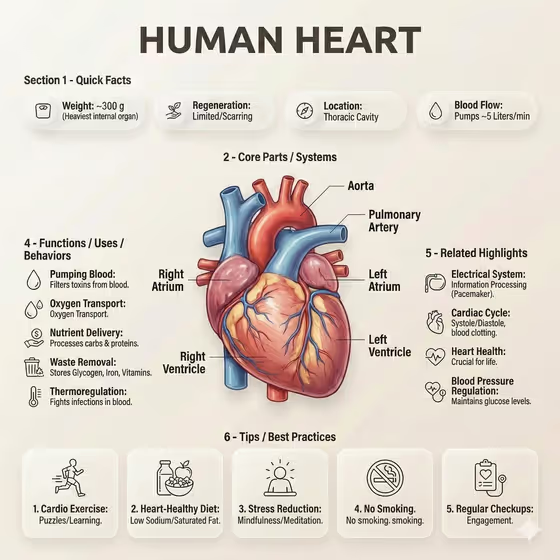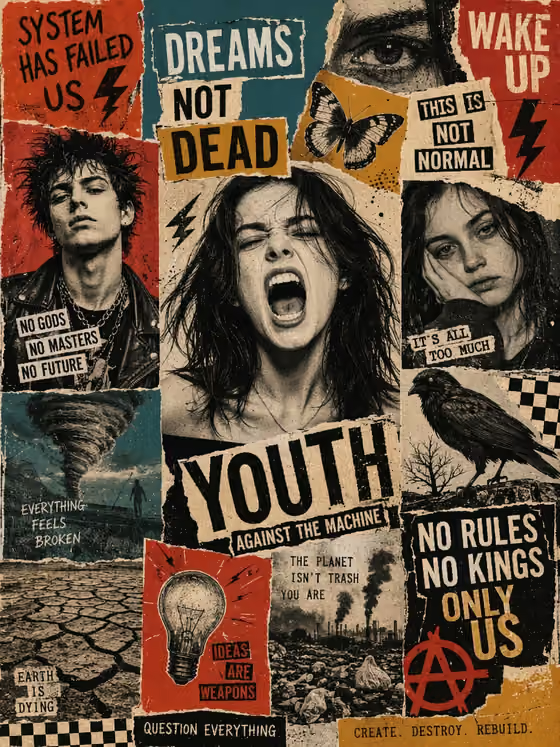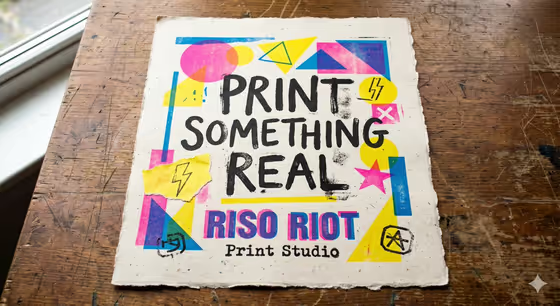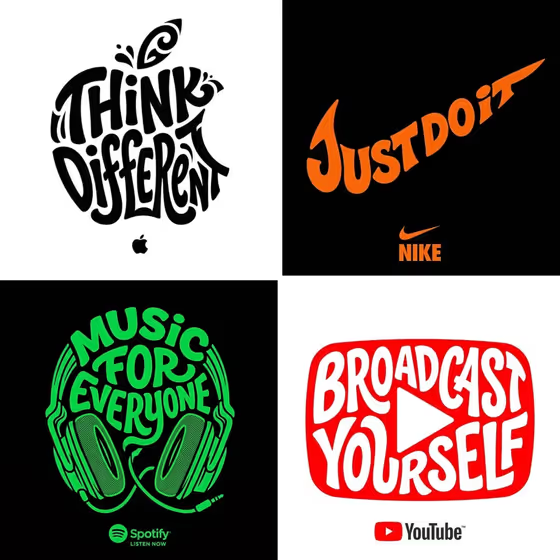
This template turns a single slogan into a poster where the lettering itself forms the outline of your product. The words stretch and curve to fill the silhouette, and a logo sits underneath, much like the sample grid showing slogans shaped into an apple, a swoosh, a pair of headphones and a play-button screen.
It suits product owners, small brands and designers who want a bold, flat-color vector-style graphic for packaging mockups, social posts, merch ideas or brand presentations. You describe the object, the brand and the slogan, pick a palette, and the template handles the lettering layout.
What works best as input
- For Object, either describe the item in plain words (for example "a sculptural fragrance bottle") or add a reference photo. A simple, clearly shaped object gives the lettering a silhouette it can follow.
- If you add a photo for Object, pick one where the product is isolated and fully in frame, with a clean background and an outline that is easy to read.
- For Brand Identity, you can describe the brand (for example "a boutique hospitality brand") or add a photo of your logo. A clear, high-contrast logo image gives you the best chance of the logo reading well below the shape.
- Slogan only accepts text, so type the exact words you want rendered. Short slogans such as "Create Boldly" fit a silhouette better than long sentences.
- This template expects at least two images in total, so plan on adding photo references for both Object and Brand Identity.
How to use it
- Open the Product Silhouette Typography template in Phosphene.
- Fill in Object and Brand Identity, either by typing a description or by adding a reference photo for each.
- Type your exact slogan into the Slogan field and choose a Color Palette from the options.
- Generate the poster, then check that the slogan is spelled correctly, the shape reads as your object, and the logo sits below it.
Tips for a better result
- Pick products with a distinctive outline. Bottles, headphones, fruit or devices with strong contours make the shape recognizable from the lettering alone.
- Keep the slogan to a few words so each letter can be large and legible inside the silhouette.
- Try different Color Palette choices on the same slogan, such as the two-tone options like burgundy and blush or forest green and sand, to see which suits the brand best.
- If the first result misses the shape, rewrite the Object description to be more specific about its form, or swap in a cleaner reference photo.
Common mistakes
- Typing a long sentence as the slogan, which forces tiny letters and makes the silhouette harder to recognize.
- Using a busy or cropped photo for Object or Brand Identity, so the template has no clean outline or logo to work from.
- Describing the object too vaguely (for example just "a product"), which leaves the silhouette undefined.
FAQ
Does the slogan have to be a photo or can I type it?
You type it. The Slogan field is text only and should contain the exact words you want rendered.
Can I use a photo of my logo?
Yes. Brand Identity accepts either a text description or a photo reference, so you can add your logo image.
What kind of object works best?
Items with a simple, recognizable outline work best, since the lettering fills and follows that shape.
How many images do I need to add?
The template asks for two or more photos, which fits adding references for both the Object and the Brand Identity.