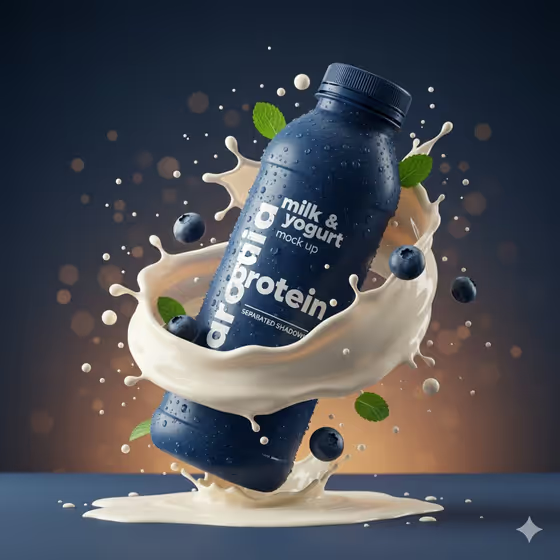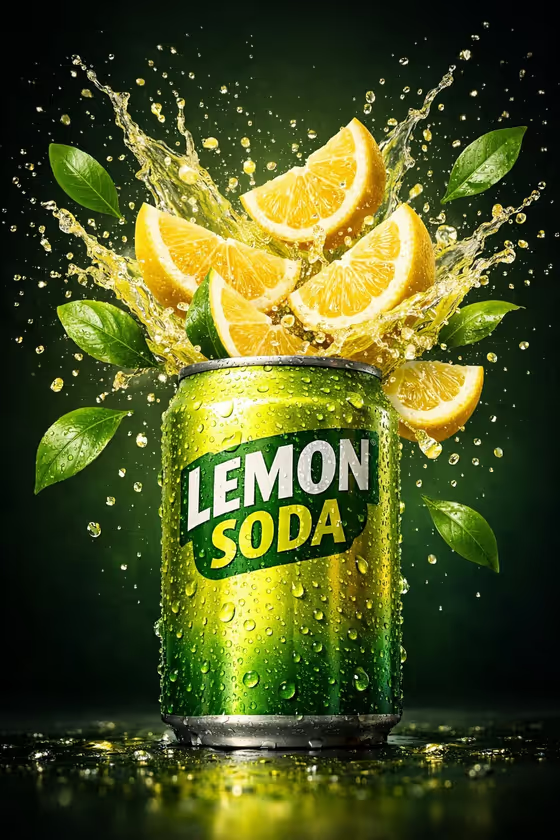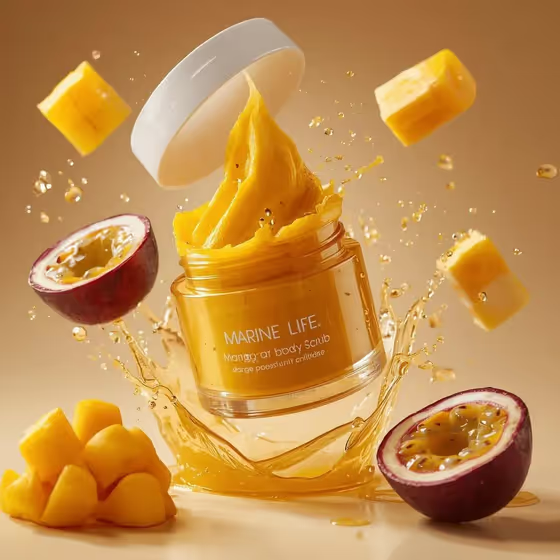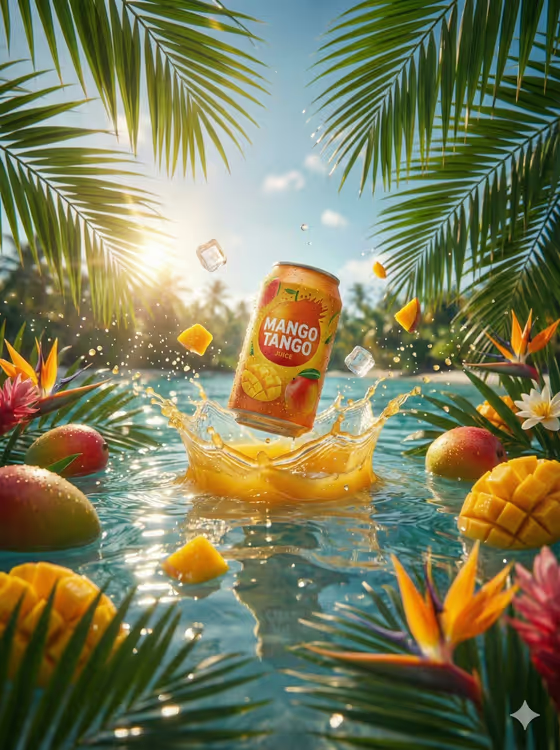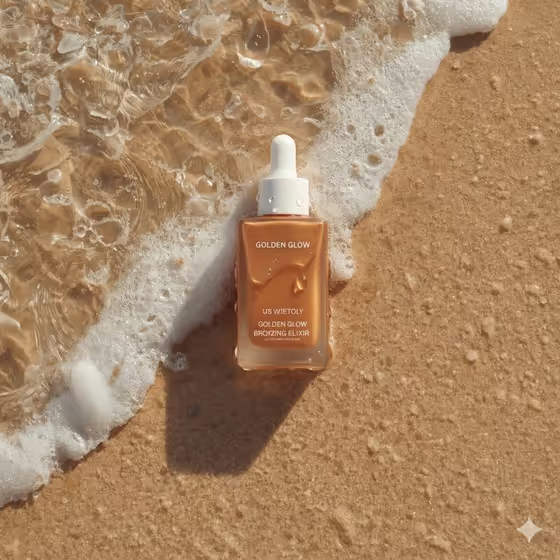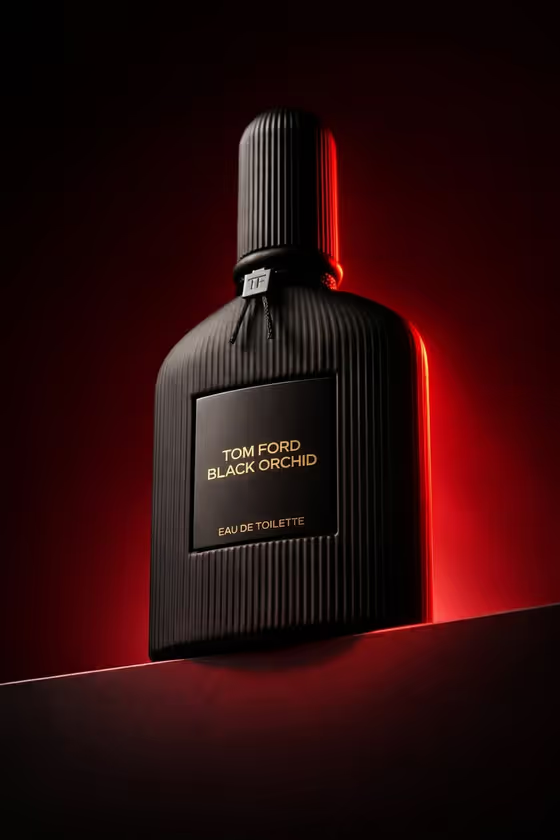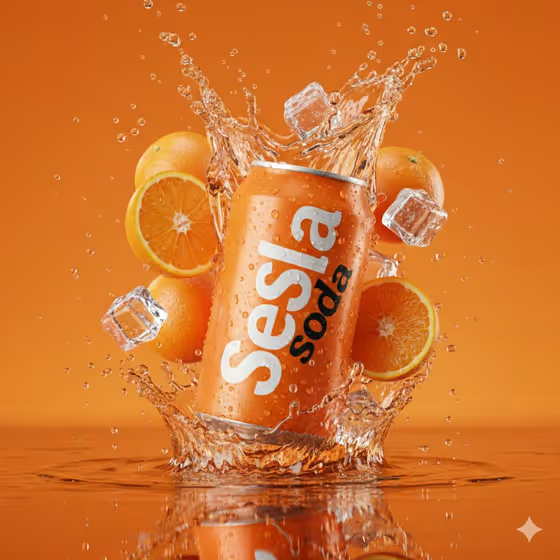
This template turns a product into a commercial-style hero shot with a frozen splash around it. In the cover example, an orange soda can sits upright and slightly embedded in a crown of orange-tinted liquid, with ice cubes, orange slices, flying droplets and condensation across the can.
It suits small brands, designers and marketers who want a bold beverage-style ad visual without setting up a studio shoot. The output is a 3:4 image, so it fits portrait placements well.
What works best as input
- For the Featured product or object field, you can upload a photo of your product or describe it in text. Either way, a clear, recognizable can or bottle will give the most predictable result.
- If you upload a photo, pick one with the product centered, front-facing and fully in frame. A plain background and even lighting make the product easier to keep intact.
- Make sure any label or logo on your product is sharp and readable in the source photo, since that is what the template builds from.
- If you describe the product instead, be specific about shape and color, for example a bright orange soda can, rather than just writing drink.
How to use it
- Open the Orange-Flavored Soda Can template in Phosphene.
- In Featured product or object, upload a photo of your product or type a short description of it.
- In Creative direction, choose or type a mood such as Clean editorial, Cinematic dramatic, Playful colorful or Quiet premium.
- Generate the image, then check the result for the splash, droplets and product shape, and adjust your inputs if you want another take.
Tips for a better result
- Try different Creative direction options on the same product. Playful colorful suits a fruity soda, while Quiet premium gives a calmer, more restrained feel.
- Match the product to the look. The template is built around a bright orange can and orange-tinted liquid, so products with a similar warm, glossy beverage character tend to fit best.
- Keep the product description short and concrete. The template already supplies the splash, condensation and studio lighting, so you only need to name the object and the mood.
- Run the template a few times with small wording changes in the product field to compare compositions and pick the cleanest one.
Common mistakes
- Uploading a cluttered or angled photo where the product is cropped or partly hidden, which makes it harder to get a clean centered frontal result.
- Writing a long, complicated description in Featured product or object. A simple noun phrase works better than a paragraph.
- Choosing a creative direction that fights the template's look, such as something very dark and moody, and then expecting the bright commercial feel of the cover.
FAQ
Do I have to upload a photo?
No. The Featured product or object field accepts either a photo or a text description, so you can type something like a premium beverage bottle instead.
Can I use it for products other than soda cans?
The field is open, so you can try other objects. The template is designed around a can in a splash, though, so beverage-style products are the most natural fit.
What shape will the image be?
The output is a single image in a 3:4 portrait ratio.
What does Creative direction change?
It sets the overall mood of the shot. You can pick an example such as Clean editorial or Cinematic dramatic, or describe your own.