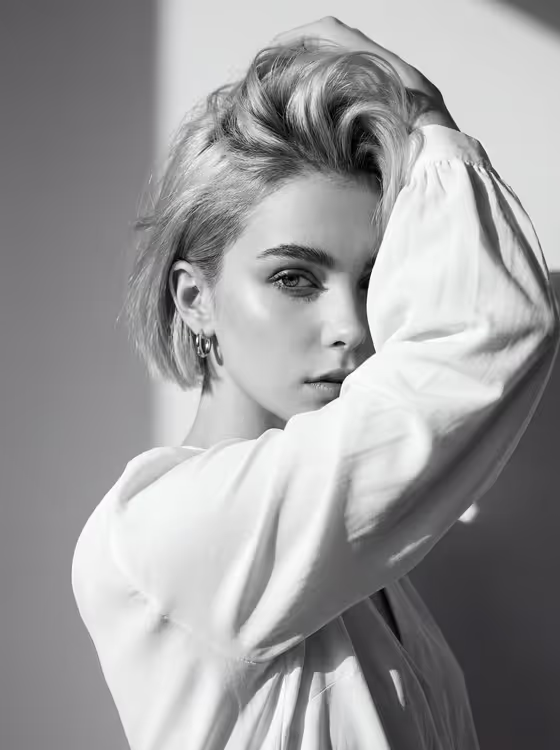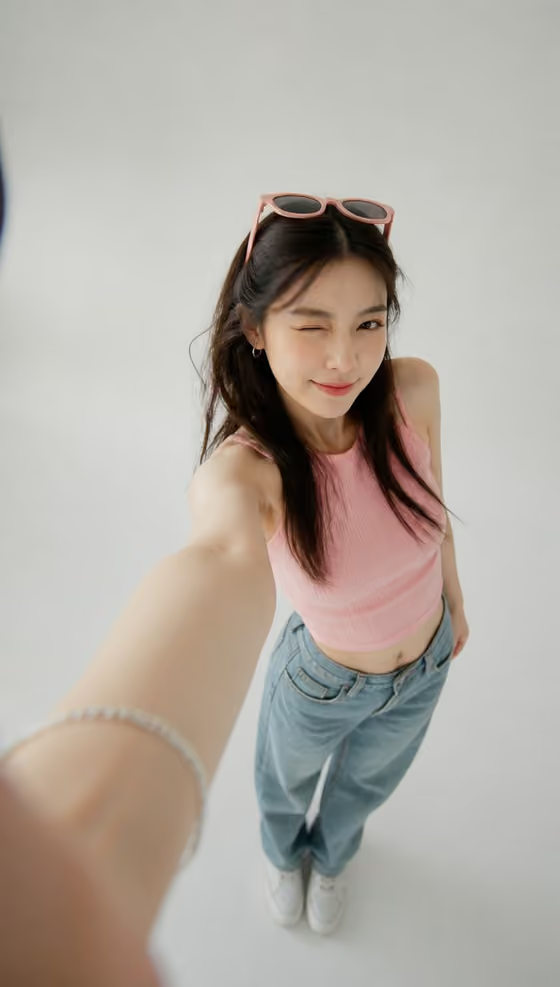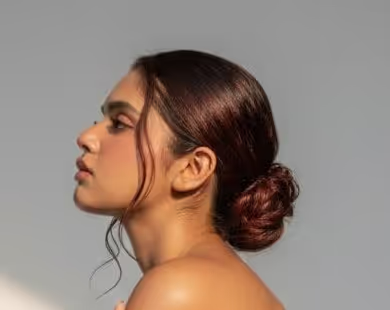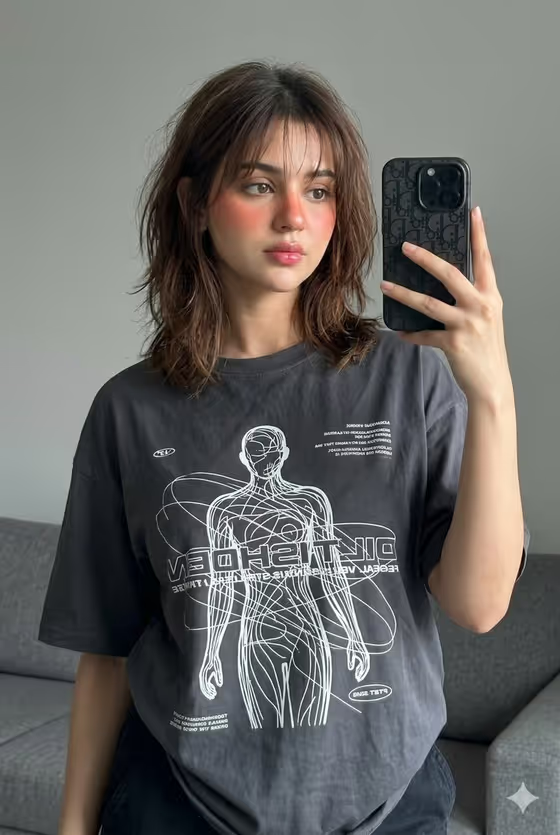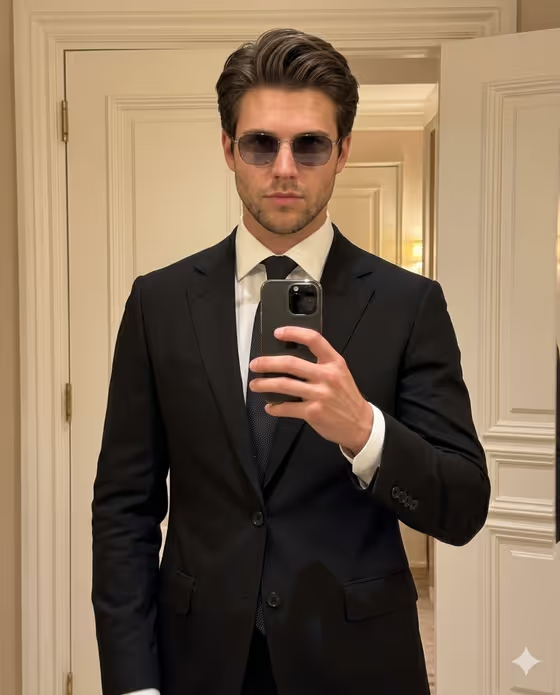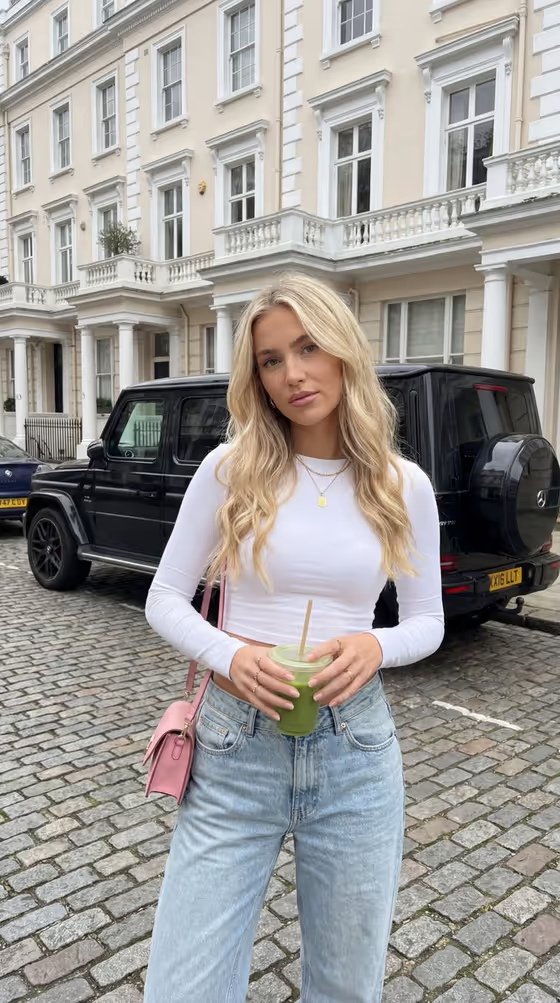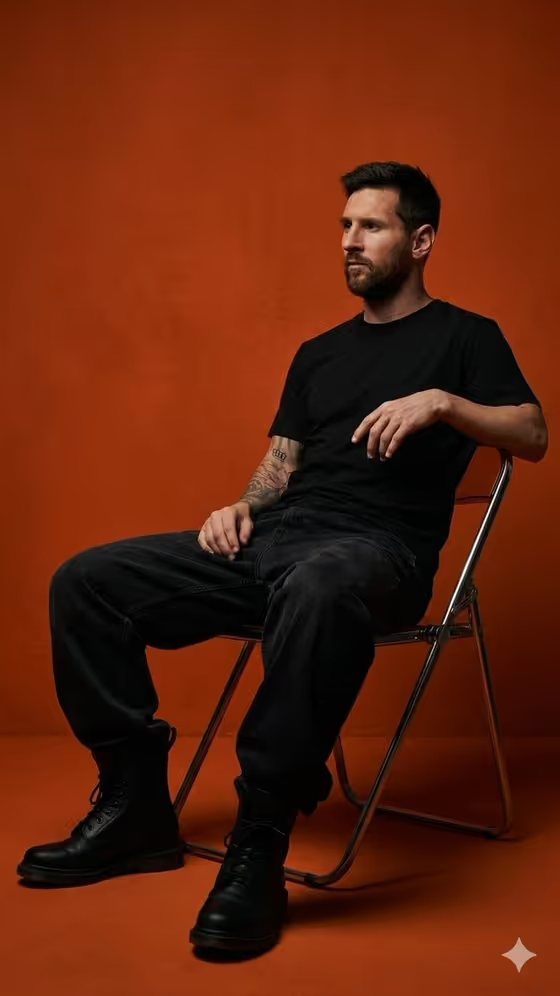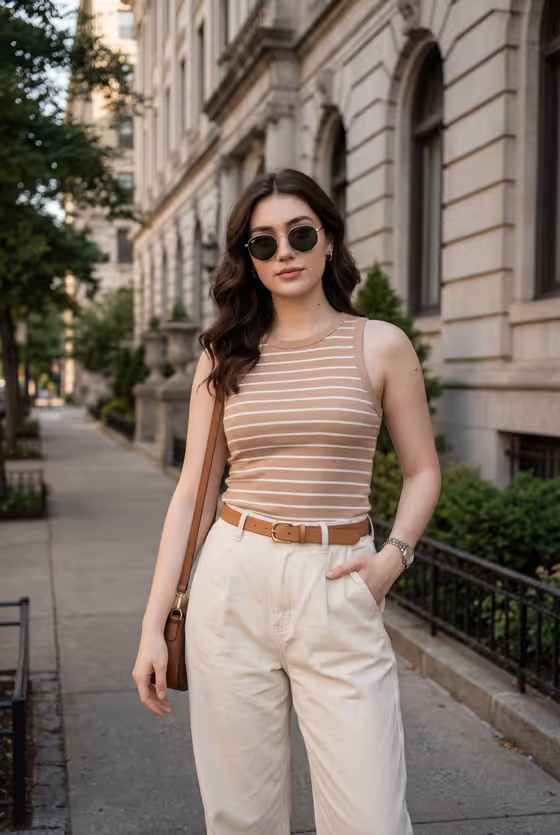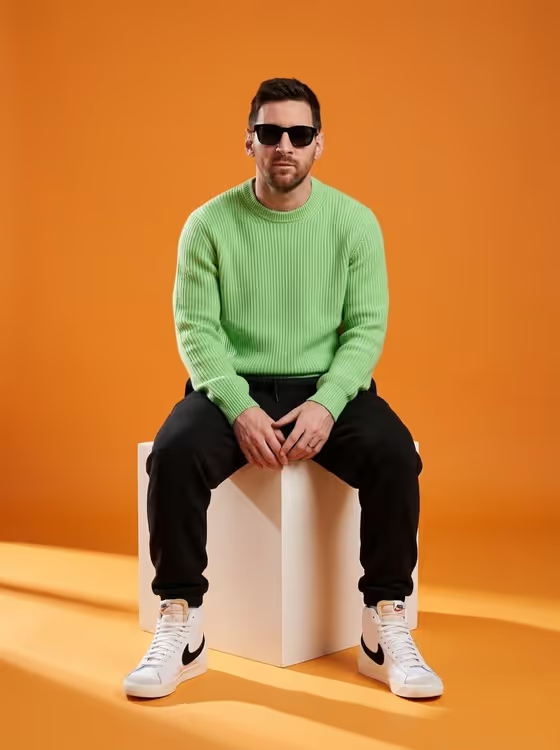
Orange Cube Editorial turns a subject into a fashion-editorial studio portrait. The scene is a person seated on a plain white cube against a vivid orange backdrop, with soft directional light that throws gentle shadows across the floor. The cover shows the look: a relaxed seated pose, hands resting together, facing the camera.
It suits anyone who wants a bold, clean, magazine-style portrait for a profile picture, a lookbook-style post, or a creative personal project. The output is a 3:4 image, so it works well as a vertical portrait..
What works best as input
- For the subject field (stylish male model portrait subject), you can either type a short description or upload a reference photo. If you upload, pick one clear photo of a single person.
- Choose a reference where the face is well lit and unobstructed, with the head and shoulders clearly visible. Heavy shadows or hats covering the face make it harder to carry the likeness over.
- If you prefer text, keep it short and concrete, like the placeholder 'a stylish male model' or 'an editorial portrait subject'. The template already supplies the outfit and setting, so you do not need to describe them.
- Only use photos of yourself or people who have agreed to be portrayed, and keep the description respectful.
How to use it
- Open the Orange Cube Editorial template in Phosphene.
- In the subject field, type a short description or upload your reference photo of one person.
- In Pose and scene, pick a framing option, such as the cube-seated studio shot, an intimate close portrait, a full-body editorial frame, or an environmental candid frame.
- Generate the image, then review the framing, face, and colors. Adjust the subject or the pose choice and run it again if needed.
Tips for a better result
- Pick the default cube-seated scene if you want the look closest to the cover: seated, centered, hands together, facing the camera.
- Try the full-body editorial frame when you want the whole outfit and the cube visible, and the intimate close portrait when the face is the focus.
- Use a reference photo with a neutral expression and straight-on angle, since the template aims for a calm, confident, camera-facing pose.
- Generate a few variations with the same inputs and compare them, then keep the one with the most natural face and cleanest composition.
Common mistakes
- Uploading a group photo or a picture with several faces, which makes it unclear who the portrait should be of.
- Writing a long description of clothes and backdrops in the subject field. The outfit, orange studio, and cube are already built into the template.
- Using a blurry, tiny, or heavily filtered reference photo, which gives the result less to work with.
FAQ
Do I have to upload a photo?
No. The subject field accepts a typed description, and it also accepts a reference photo if you want the portrait to be based on a specific person.
What does the Pose and scene option change?
It sets how the image is framed, for example the seated cube shot, a close portrait, a full-body editorial frame, or a candid environmental frame.
What size is the result?
The template outputs a single image in a 3:4 vertical ratio.
Can I change the orange background or the outfit?
Those are part of the template's fixed direction, so the orange studio look stays consistent. You control the subject and the framing.