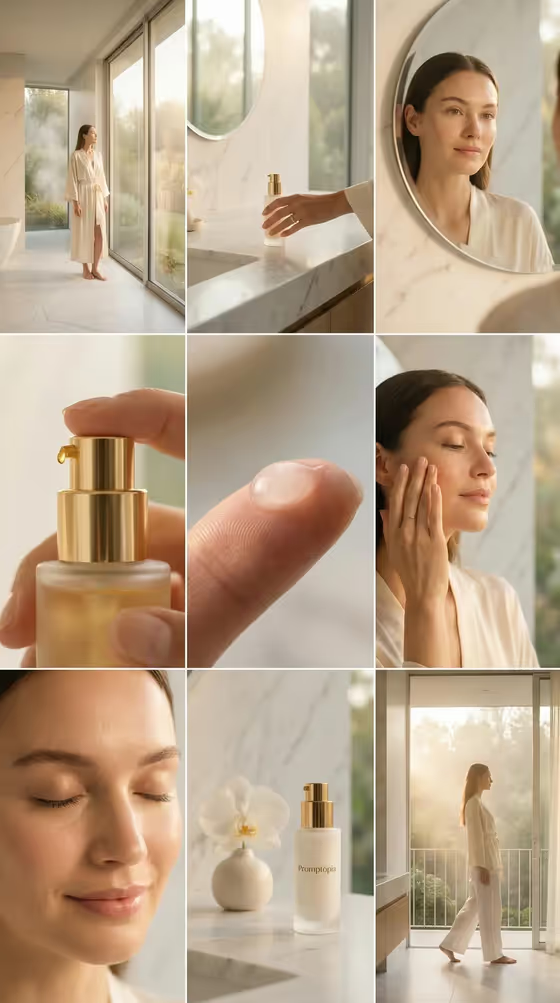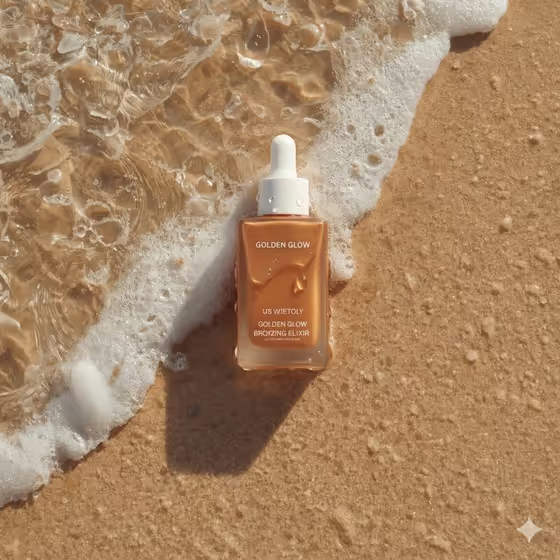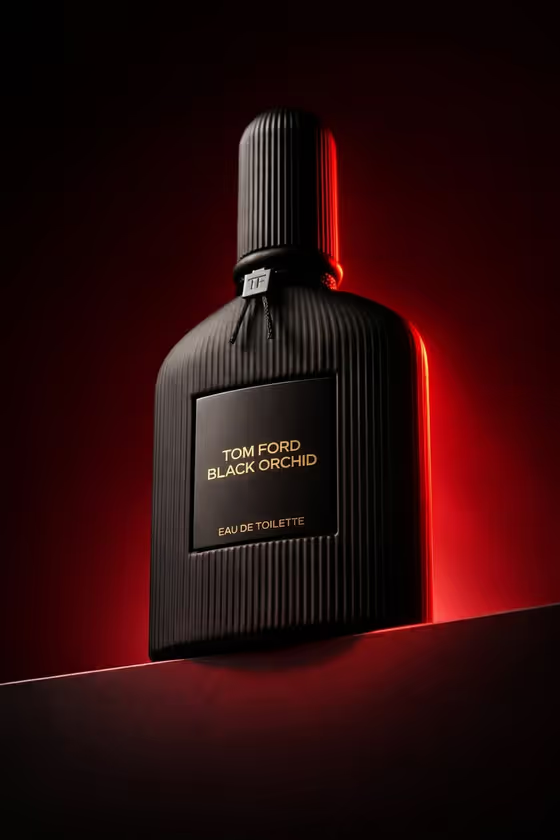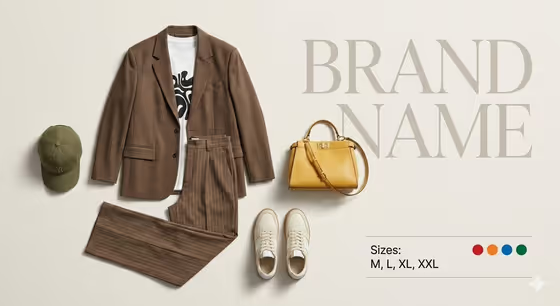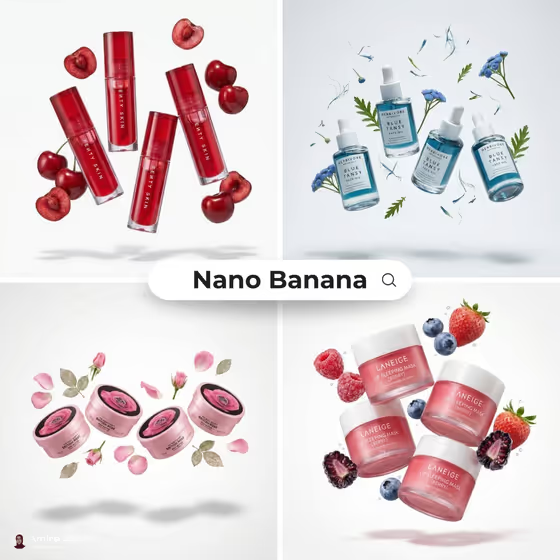
This template makes a square product image where several identical units of your product hover in mid-air on a clean white background, surrounded by the fresh ingredients the product is made from. The cover examples show lip glosses among cherries, dropper serums among blue flowers and leaves, body butter tubs among rose petals, and lip masks among berries.
It suits skincare, beauty, food and drink or any branded item with a clear ingredient story. You describe or upload the product and pick a creative direction, and the template handles the floating arrangement, soft shadows and glossy packaging look.
What works best as input
- The Featured product or object field accepts a photo or a text description, so use a photo if you want the packaging, label and shape to carry over as closely as possible.
- Use a clear, well-lit photo of the product on its own, with the whole item visible and as little clutter or glare as you can manage.
- If you type instead, be specific about the product type and its look, for example "a premium beverage bottle" or "a compact consumer device", and mention the ingredient or fruit it relates to.
- Pick a product that has an obvious ingredient or natural element, since the template surrounds the units with fresh ingredients and sliced pieces.
How to use it
- Open the Product 3 4 Identical template in Phosphene.
- In Featured product or object, add a photo of your product or type a short description of it.
- Set Creative direction, either by choosing an option like Clean editorial or Quiet premium or by writing your own.
- Generate the image, then review the square result and check the product shape, label and ingredients before you use or refine it.
Tips for a better result
- Try different Creative direction options on the same product. Clean editorial and Quiet premium suit a minimal look, while Playful colorful or Cinematic dramatic push the mood in other directions.
- Name the ingredient in your product description (for example cherry, rose or berry) so the floating elements match what the product is actually made from.
- Start from a sharp, front-facing photo if branding and label text matter to you, then compare the result against your original.
- Run the same product with two or three directions and keep the version that best fits your brand.
Common mistakes
- Uploading a cluttered, dark or heavily angled photo, which gives the template less clear product detail to work from.
- Writing a vague description like "a product" with no type, material or ingredient, which leaves the composition generic.
- Expecting exact label text to match perfectly without checking the result, so always inspect small print and logos.
FAQ
Can I use a photo or do I have to type?
The Featured product or object field accepts either a photo or a text description. Creative direction is a choice or short description, not a photo.
What size is the image?
The template outputs a square 1:1 image.
Will the background always be white?
The template is built around an ultra-clean white background with soft studio lighting and realistic shadows under the floating units.
How many product units will appear?
The template aims for three or four identical units of the product floating together, surrounded by fresh ingredients.