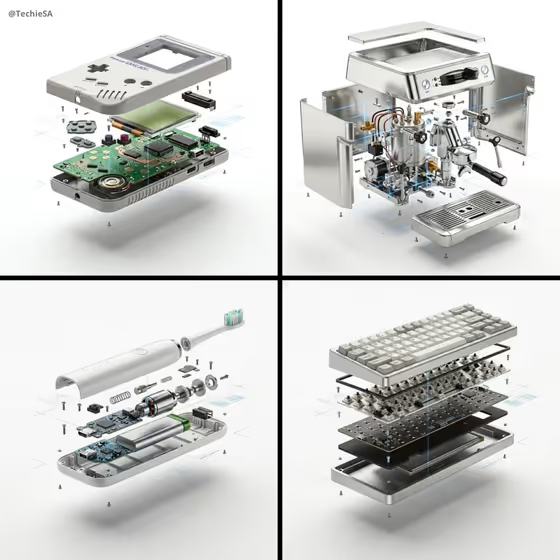
This template turns a single product into an exploded-view advertising image. The outer shell lifts away from the core, and the inner parts, small screws and components hover in neat alignment against a clean white backdrop, as in the cover examples of a handheld console, an espresso machine, an electric toothbrush and a keyboard.
It suits anyone who wants a technical, high-end product visual: makers showing off how a device is built, sellers of gadgets or appliances, or designers who want an engineering-style hero image. The output is a single 3:4 image.
What works best as input
- Use a photo of the product on its own, with the whole object visible and nothing cropped, so the template can decide where the shell and inner layers separate.
- Pick a sharp, evenly lit photo. Clear edges and visible details such as buttons, grilles, handles and seams help the layers stay recognizable after the explosion.
- In the Featured product or object field you can also describe the item in words, for example a compact consumer device, if you do not have a photo. Name the specific kind of object rather than something vague.
- Choose objects that plausibly have inner mechanics or layered parts. Devices, appliances and tools tend to match the look of the cover examples best.
How to use it
- Open the PRODUCT High-End Product Advertising template in Phosphene.
- In Featured product or object, add your product photo or describe the product, such as a premium beverage bottle.
- Set Creative direction, for example Clean editorial or Quiet premium, to guide the overall mood of the ad.
- Generate the image, then review how the shell, screws and inner parts are arranged. Adjust your product description or direction and run it again if you want a different result.
Tips for a better result
- Try different Creative direction options on the same product. Cinematic dramatic and Playful colorful will change the feel while the white backdrop and floating layout stay the same.
- Be specific in the product field about material and type, such as brushed metal or white plastic, so the parts inside look believable.
- For a lineup like the cover collage, run several different products with the same Creative direction so the set looks consistent.
- If the first result hides a feature you care about, mention that feature in your description and generate again.
Common mistakes
- Using a cluttered photo with other objects or a busy background, which can confuse what the product actually is.
- Entering a very vague product description, which leaves the template guessing the shape and the inner components.
- Expecting an exact engineering diagram. The result is a stylized advertising image, so inner parts are imagined rather than a true teardown.
FAQ
Do I have to upload a photo?
The Featured product or object field accepts a photo or a text description, so you can describe the product instead if you prefer.
What does Creative direction change?
It sets the mood of the ad, with options like Clean editorial, Cinematic dramatic, Playful colorful and Quiet premium. The exploded-view layout on a white backdrop stays the focus.
What shape is the output?
The template produces a single image in a 3:4 aspect ratio.
Will the inner parts match my real product?
Not exactly. The inner components are generated to look realistic for that type of product, but they are not a literal internal scan.