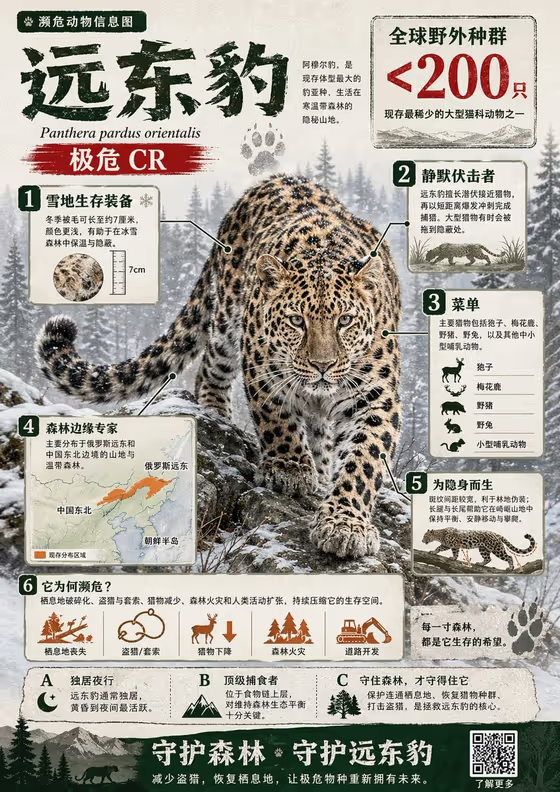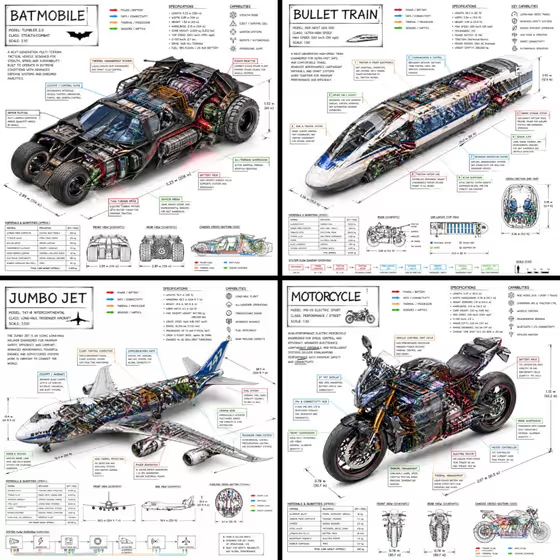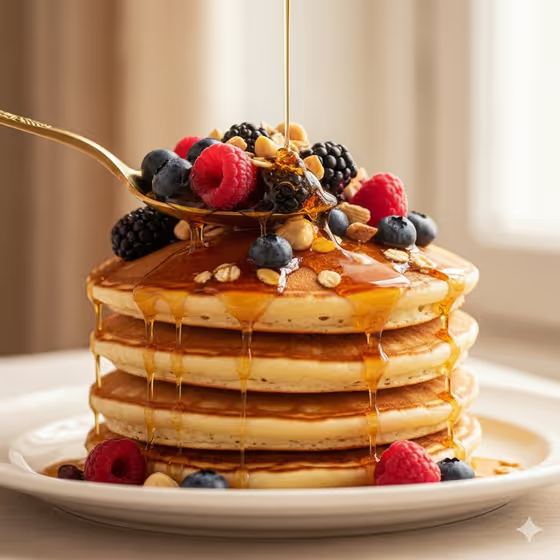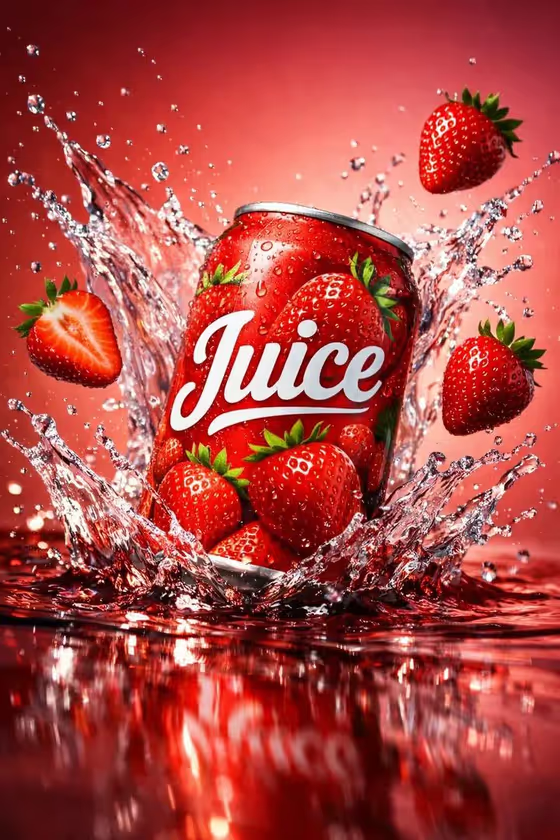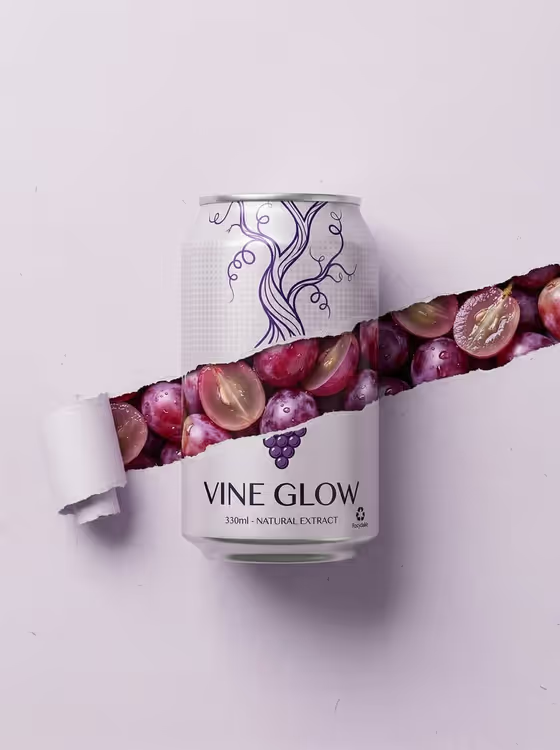
This template creates a minimalist commercial product shot of a beverage can on a light gray studio background. A realistic torn-paper opening runs across the can and the backdrop, and fresh fruit with water droplets shows through the gap, as in the grape can on the cover.
It suits anyone who wants a clean, premium-looking drink visual, such as a concept mockup for a new soda, sparkling water or energy drink. The output is a single 3:4 image, so it works well for portrait layouts.
What works best as input
- For Beverage product or package, describe the can in a short, concrete phrase such as grape botanical soda can or citrus sparkling water can. Naming the flavor helps the packaging and fruit feel connected.
- This field's help text mentions describing the package or uploading its exact design, but the slot is set as text, so write a description rather than relying on a photo.
- Keep the description focused on the product itself: drink type, flavor and package style. Leave out scene details, since the studio, lighting and framing are already set.
- For Fruit reveal, pick the option or write a phrase that matches your flavor, such as red and purple grapes with droplets or bright citrus slices and mist.
How to use it
- Open the Torn-Fruit Beverage Can template in Phosphene.
- Fill in Beverage product or package with a short description of your can, for example berry energy drink can.
- Choose or enter your Fruit reveal, such as mixed berries with crushed ice or tropical fruit chunks and condensation.
- Generate the image, then check that the torn opening crosses the can and background and the fruit looks like it sits inside.
Tips for a better result
- Match the fruit to the flavor in your product description. A grape soda with grapes inside, like the cover, reads as one coherent concept.
- Try the different Fruit reveal examples with the same can description to compare how citrus mist, crushed ice or condensation change the mood.
- Add a hint of style to the product phrase, such as botanical or sparkling, to guide the label feel while the studio look stays fixed.
- If the first result is not right, adjust one field at a time so you can see which change made the difference.
Common mistakes
- Writing a vague product like drink or can gives the template little to work with. Name the flavor and drink type.
- Pairing a fruit that does not match the beverage can make the image feel confusing, for example a citrus can with a berry reveal.
- Adding extra scene instructions such as a beach or colorful background, which conflicts with the fixed light-gray studio setup.
FAQ
Can I upload a photo of my own can?
The Beverage product or package slot is a text field and does not accept photos here, so describe your can in words instead.
What aspect ratio does the result have?
The template produces a 3:4 portrait image.
Can I change the background color or lighting?
No, the clean light-gray studio, symmetrical framing and soft shadows are part of the template's fixed direction.
How many fields do I need to fill in?
Two: Beverage product or package and Fruit reveal. Both are required.