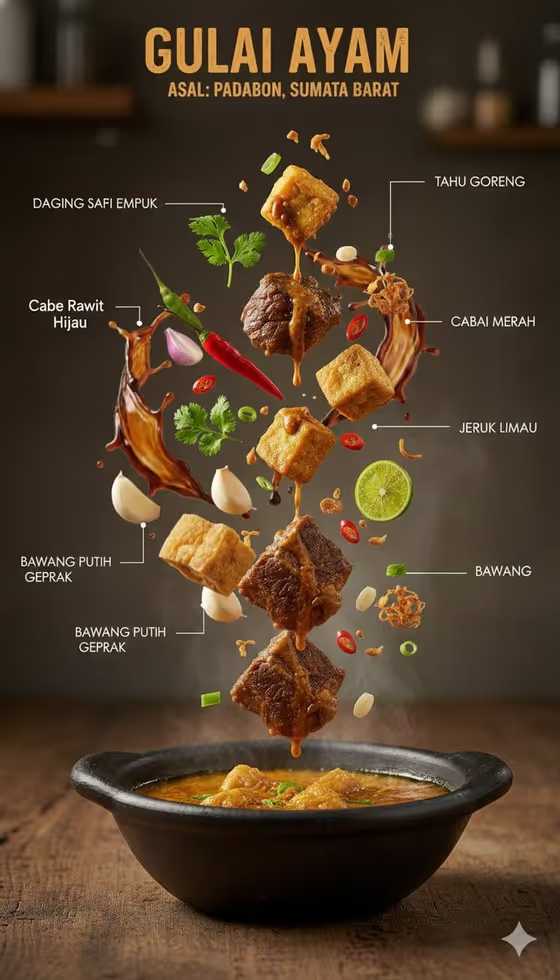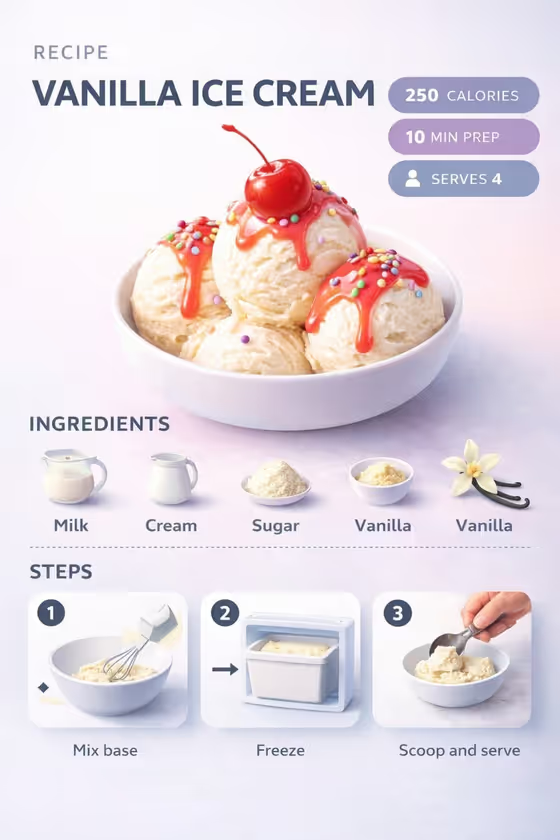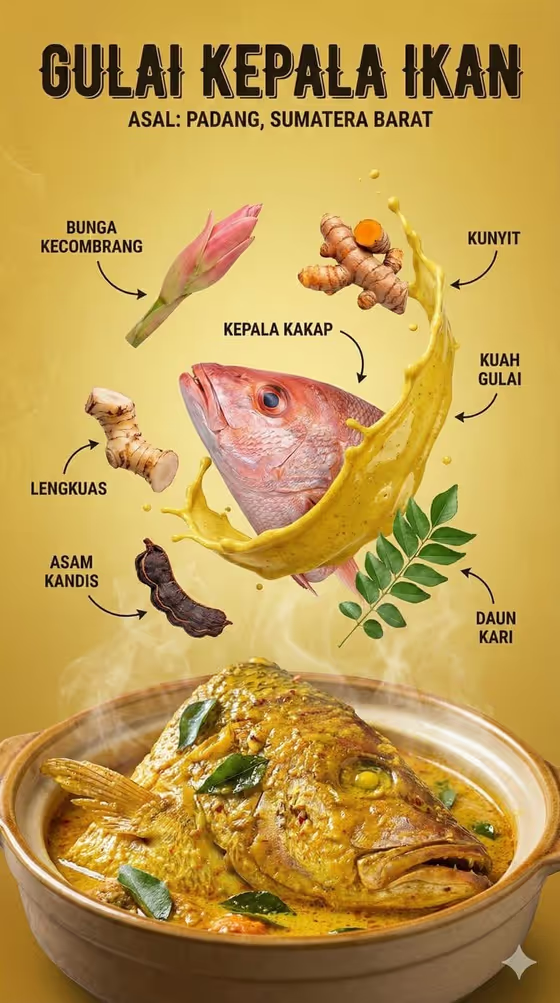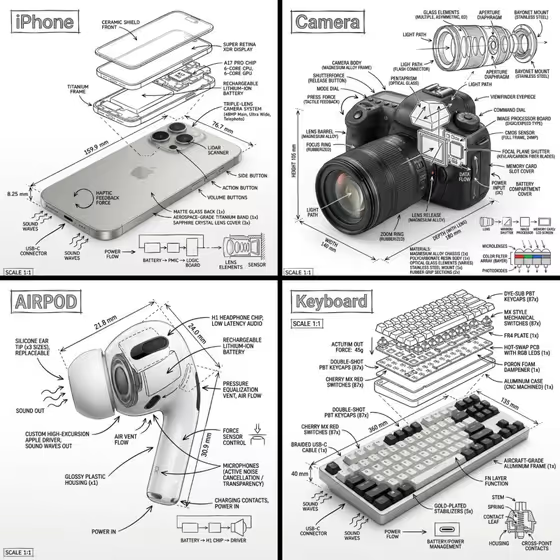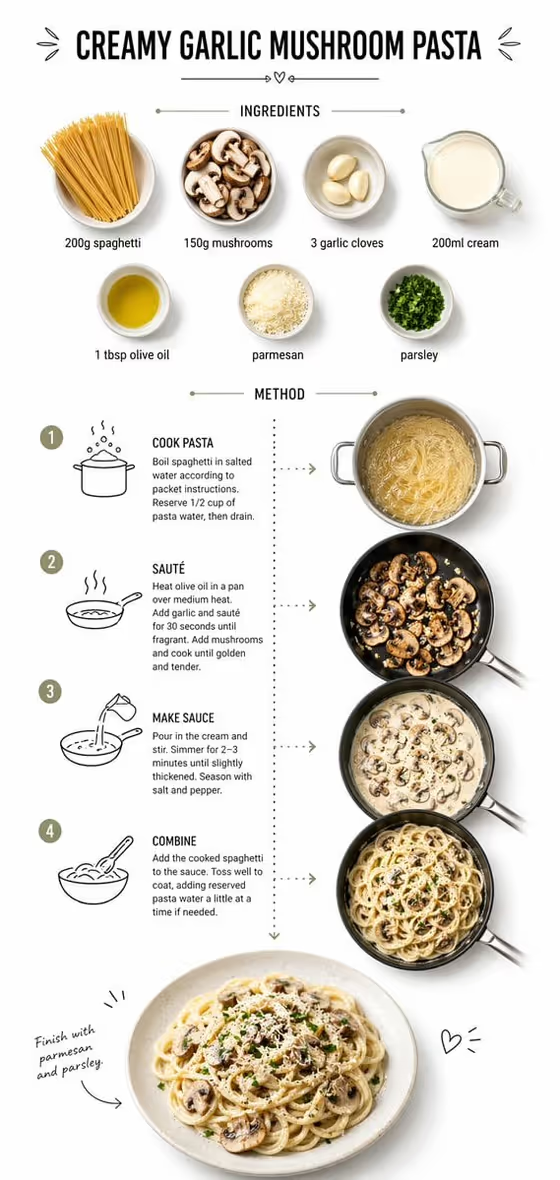
This template turns a dish name and an ingredient list into a 3:4 recipe infographic. The layout is a clean white card with labeled ingredient photos at the top, dotted lines leading through simple cooking icons and stage photos, and one finished plated pasta at the bottom.
It suits home cooks, food bloggers and anyone who wants a shareable recipe card that shows the whole path from raw ingredients to the plate. It is built around pasta dishes, as the example prompts show, though the ingredients you list drive what appears on the card.
What works best as input
- In Recipe Food Product, name the dish clearly, for example "creamy garlic mushroom pasta" or "lemon herb fettuccine". A specific name gives the infographic a clear subject and title.
- This field also accepts a photo as a visual reference. If you add one, choose a clear, well-lit shot of the dish so the finished plate at the bottom of the card has something exact to follow.
- In Recipe Ingredient Text, include quantities where you have them, such as "200g spaghetti, 150g mushrooms, garlic and cream". The template asks for accurate quantities, so the numbers you write are the ones that should show on the labels.
- Keep the ingredient list short and consistent with the dish name. If the dish is a mushroom pasta, the list should actually contain mushrooms.
- Use plain ingredient names rather than brand names, since the template aims to avoid accidental branding.
How to use it
- Open the Creamy Pasta Recipe Path template in Phosphene.
- Fill in Recipe Food Product with your dish, or add a reference photo if you want a specific look for the plated pasta.
- Type your ingredients and quantities into Recipe Ingredient Text, separated by commas.
- Generate the image, then check that the labels, quantities and cooking stages match what you entered, and regenerate if something is off.
Tips for a better result
- Try the example dishes as a starting point, such as tomato basil spaghetti or spinach parmesan linguine, then swap in your own ingredients.
- Put the main ingredients first in your list so they read as the headline items in the top row of the card.
- Change only one field at a time between generations. That makes it easy to see whether the dish name or the ingredient list caused a difference.
- If you use a reference photo, pick one that matches the dish you named so the plated result and the title agree.
Common mistakes
- Writing a vague ingredient list like "pasta and stuff". Without clear items and amounts, the labels and quantities on the card will be generic.
- Naming one dish but listing ingredients for another, which can leave the infographic with a mismatched plate or confusing steps.
- Overloading the ingredient field with long sentences or full instructions. It works best as a short list of items, not a paragraph.
FAQ
Do I have to upload a photo?
No. Both fields are text, and only Recipe Food Product also accepts a photo reference. You can describe the dish in words and still get the full infographic.
Does it write the cooking steps for me?
The template builds the boiling, sautéing and mixing stages into the infographic from your dish and ingredients. Review the result to make sure the steps suit your recipe.
What shape is the output?
It makes a single image in 3:4 portrait format, laid out top to bottom from ingredients to the finished plate.
Can I use it for dishes other than pasta?
The template is written around pasta, with pasta examples in both fields. Other dishes may not fit the layout as well, so pasta recipes are the safest choice.