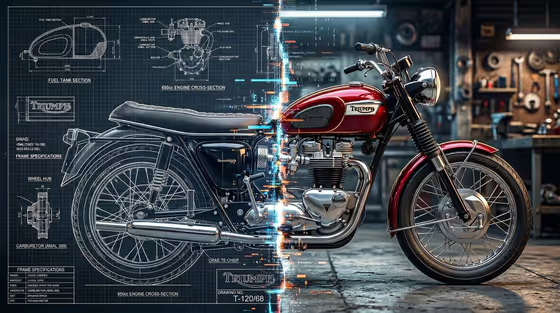
Split Blueprint Diagram takes one subject and divides the frame down the middle. One side is drawn as technical blueprint linework with callouts and section views, and the other side shows the subject as a finished, realistic object. The cover image shows a classic motorcycle this way: the left half is a diagram of the frame, fuel tank and engine cross-section, and the right half is the same bike in a workshop.
It suits product designers, makers, educators and anyone who wants a technical-poster look for a vehicle, a machine, a structure or a topic that benefits from an explainer layout. You describe the subject, pick what the diagram should emphasize, and add one adjective to set the tone.
What works best as input
- The Diagram Subject field accepts either a typed description or an uploaded reference photo. If you upload, choose a clear image where the whole subject is visible and easy to read.
- Pick a subject with recognizable parts, such as a vehicle, machine, product or building system. The cover shows how well mechanical objects translate into labeled sections and cross-views.
- If you type instead, be specific. 'A vintage red motorcycle with a parallel-twin engine' gives the diagram more to work with than 'a motorcycle'.
- Use a reference with even lighting and a clean background so the shape and materials stay faithful on the realistic half of the split.
How to use it
- Open the Split Blueprint Diagram template in Phosphene.
- In Diagram Subject, describe what you want explained or upload a reference photo of it.
- Choose an Information focus (for example components and labels, measurements and materials, workflow and relationships, or cutaway and functional arrows), then type an Adjective such as refined, bold or minimal.
- Generate the image, then review the split line, the linework and the labels, and adjust your inputs if something is off.
Tips for a better result
- Match the Information focus to your subject. Cutaway and functional arrows suits engines and machines, while measurements and materials suits products and architecture.
- Try different Adjective values on the same subject. A 'minimal' diagram and a 'bold' one will read very differently.
- Use a reference photo when you need the realistic half to match a specific object, and a text description when you want a generic or imagined version.
- Generate once per focus option and compare, since each one changes what the blueprint half emphasizes.
Common mistakes
- Entering a vague subject like 'a thing'. The diagram needs identifiable parts to label and section.
- Uploading a cluttered or heavily cropped photo, which makes the blueprint half harder to match to the real object.
- Treating the label text as exact data. Generated callouts and numbers are decorative, so check or replace any text you need to be accurate.
FAQ
Do I have to upload a photo?
No. Diagram Subject accepts a typed description or a reference photo, so you can use either.
What does the Information focus change?
It sets what the blueprint side stresses, such as component labels, measurements and materials, relationships, or cutaway views with arrows.
What kind of subjects work best?
Objects with distinct parts, like vehicles, machines, products and architectural systems, as the example options suggest.
What aspect ratio does the output use?
The template is set to 3:4.