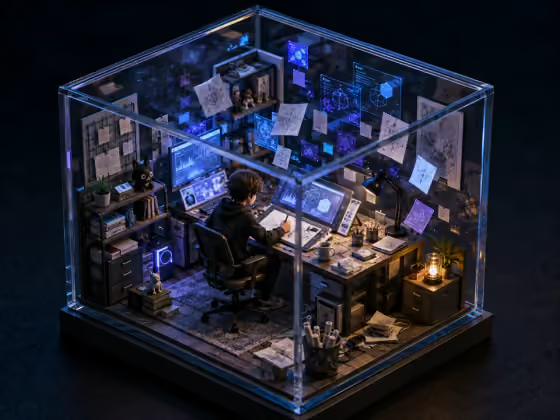
Vibe Box turns a short description of a room into a collectible miniature diorama sealed inside a transparent container. The result is a detailed 3D-style image in a 4:3 frame, shown from an isometric 3/4 top-down angle so you can see the desk, the chair, the shelves and the props all at once.
It suits designers, illustrators, developers, makers and anyone who wants a small, shareable portrait of a workspace or a mood. There is nothing to upload: you pick a container, a mood and a floating-detail style, then describe the person and the props in text.
What works best as input
- There is no photo slot in this template, so everything comes from your wording. Spend your effort on the two text fields: Room subject and Desk elements.
- In Room subject, name a person or character plus what they are doing, like "a focused artist at a small desk" or "a writer surrounded by index cards". A clear activity gives the room a focal point.
- In Desk elements, list three to five small, concrete props separated by commas, such as "a laptop, mechanical keyboard, sticky notes, and tea". Specific objects make the workspace feel lived-in.
- Keep the two text fields consistent with each other. A ceramicist with paint tubes and cups reads more clearly than a mix of unrelated professions and props.
- Screens, posters and notes are rendered as abstract miniature shapes, so do not rely on specific words or logos appearing in them.
How to use it
- Open the Vibe Box template in Phosphene.
- Choose a Container (for example a transparent glass cube or a clear acrylic display box), then pick a Workspace mood and your Floating details from their lists.
- Type your Room subject and Desk elements. The placeholders show the style of phrasing that works well.
- Generate the image and review it. Check that the room, props and mood match what you described, then adjust a field and run it again if you want a different take.
Tips for a better result
- Change only the Workspace mood between runs to see how the same room shifts, for instance midnight creative focus versus sunlit cozy studio calm.
- Match the Floating details to your subject: pinned reference images and miniature plants suit a field-notes or botany room, while translucent UI panels suit a developer's desk.
- Try a different Container for a new collectible feel. A tiny open-front museum case or a rounded capsule display case changes the silhouette of the whole piece.
- Use contrasting props in Desk elements (one glowing item, one analog item) to add visual variety inside a small space.
Common mistakes
- Writing a long story in Room subject. Keep it to one person or character and one activity so the scene stays readable at miniature scale.
- Expecting legible text on screens, posters or notes. The template renders these as abstract shapes, so asking for specific words or logos will not work.
- Listing too many unrelated props in Desk elements, which can crowd the desk and blur the mood you picked.
FAQ
Can I upload a photo of my own desk or room?
No. This template has no photo upload. You describe the room in the Room subject and Desk elements fields instead.
What aspect ratio does the image come out in?
Vibe Box produces a 4:3 image.
Why can't I read any text on the screens or notes?
The template is set to render screens, posters and notes as miniature abstract shapes, with no readable interface text, captions, logos or watermark.
Can I change the camera angle?
The angle is fixed to an isometric 3/4 top-down collectible model view. You control the look through the container, mood, props and floating details.