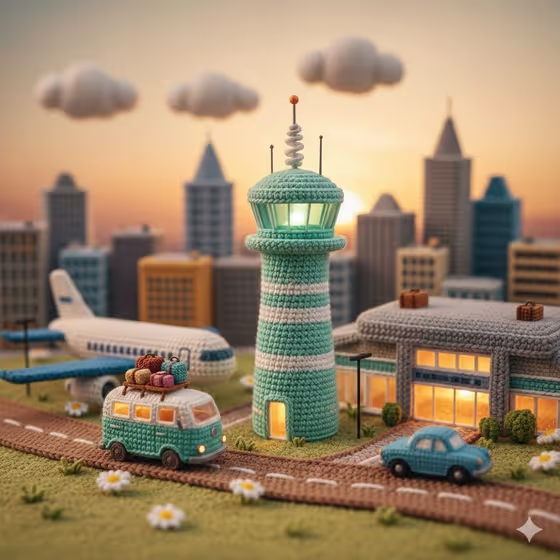
Crochet Airport World turns your subject into a miniature airport diorama made entirely of crocheted yarn. The scene is built around a mint-green control tower, a teal camper van with luggage on its roof, a blue classic car, a parked passenger plane and a glowing terminal, all with visible stitches and a soft golden-hour sky.
It suits anyone who likes handmade, cozy imagery: craft fans, people making a playful travel graphic, or anyone who wants a favorite person, object or idea placed inside a tiny yarn world. The result is a single 3:4 image.
What works best as input
- The first field accepts either a short text description or an uploaded reference photo. Use whichever describes your subject best, or combine them if you want a specific look carried over.
- If you upload a photo, pick one with a single clear subject, good light and a plain or uncluttered background so the shape and colors are easy to read.
- If you type instead, be concrete. The placeholder 'a crocheted airport miniature' shows the idea: name the subject and one or two key details like color or an object it holds.
- Only use photos and references you own or have permission to use, and keep the subject respectful, since it will be rendered as a cute yarn version.
How to use it
- Open the Crochet Airport World template in Phosphene.
- In the subject field, describe what you want or upload your reference. This field is required.
- Choose a Scene framing option, such as a wide environmental view, a medium narrative frame or a close detail study.
- Generate the image, then look it over for yarn texture, the airport elements and how your subject was handled. Adjust your input and run it again if needed.
Tips for a better result
- Try a wide environmental view to show the whole airport, tower, plane and skyline together, like the cover image.
- Pick the close detail study when you want the stitched texture and small props such as luggage or daisies to stand out.
- Keep your subject description short and specific so it blends with the fixed airport scene instead of competing with it.
- Run the same subject with different framing options and compare, since the framing changes how much of the world you see.
Common mistakes
- Writing a long, complicated description. The template already defines the airport, vehicles, sky and yarn style, so extra scene details can clash with it.
- Uploading a cluttered or low-light photo, which makes the subject harder to turn into a clean crocheted form.
- Expecting the airport layout to change. The tower, camper van, plane and terminal are part of the fixed direction, so your input mainly shapes the subject and framing.
FAQ
Do I have to upload a photo?
No. The subject field accepts a text description, and a photo is an option if you want to give an exact visual reference.
What does Scene framing change?
It sets how the image is composed, with options like a wide environmental view, a medium narrative frame or a close detail study. The crochet style stays the same.
What size is the result?
The template produces a single image in a 3:4 aspect ratio.
Can I change the airport elements?
Those are part of the template's fixed direction, so they stay consistent. You steer the result through your subject and the framing choice.