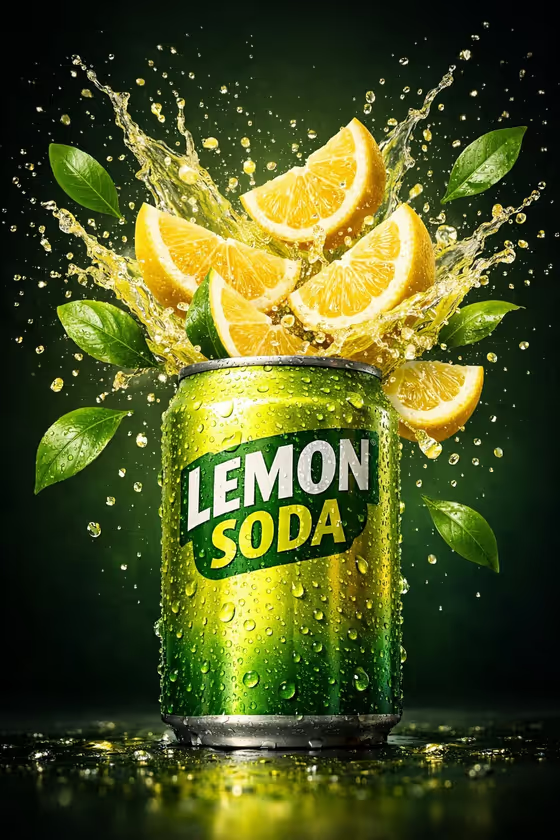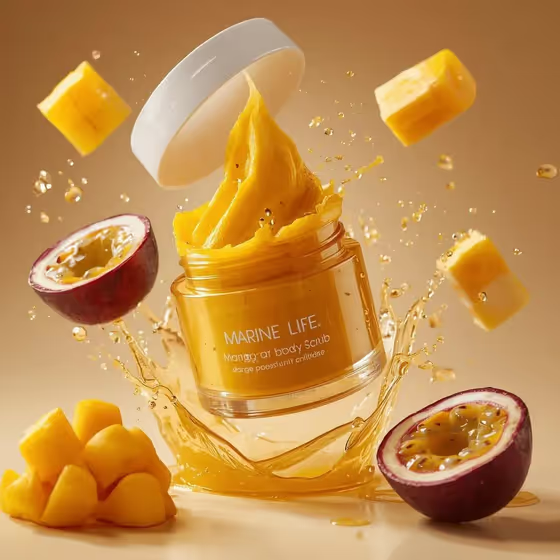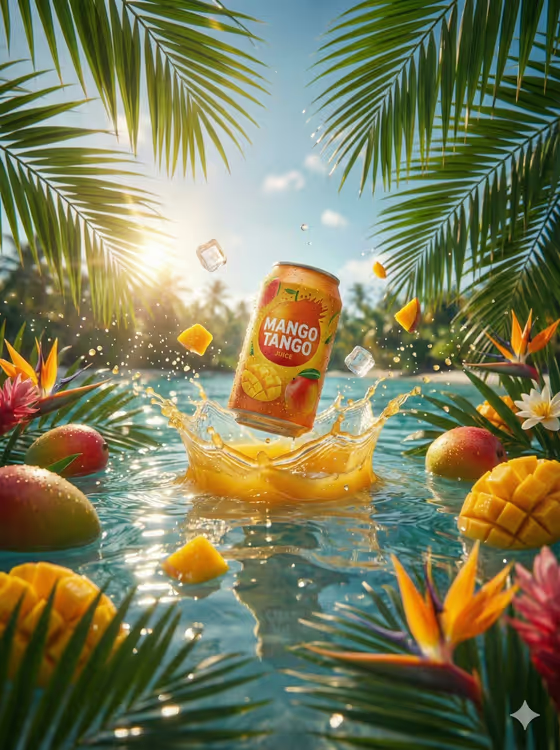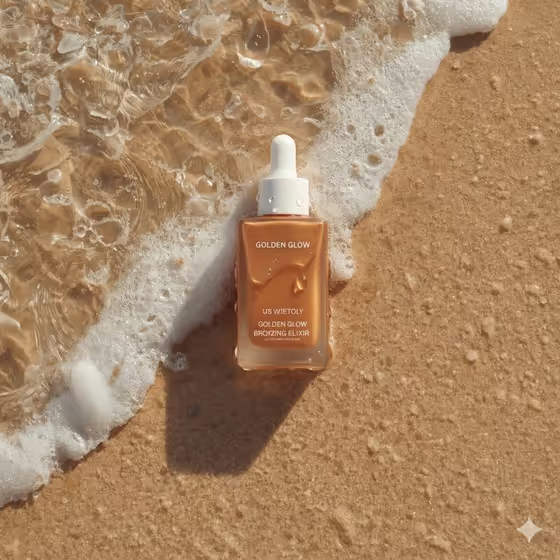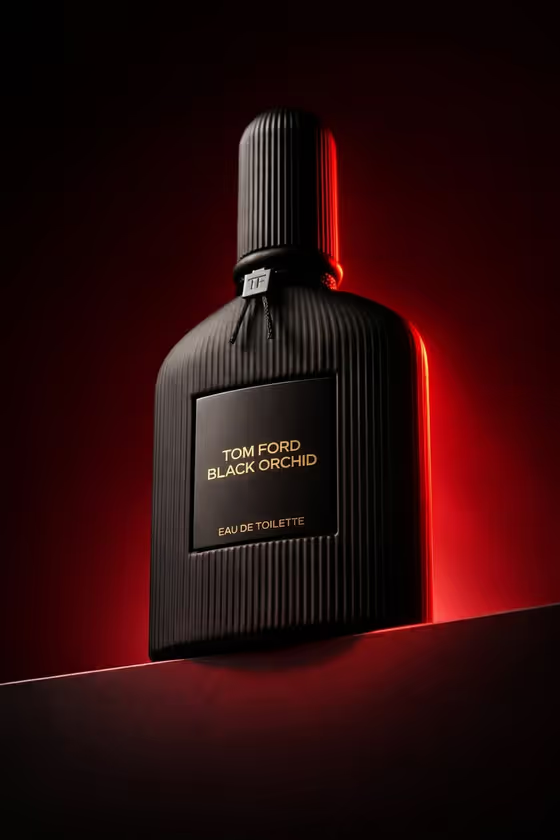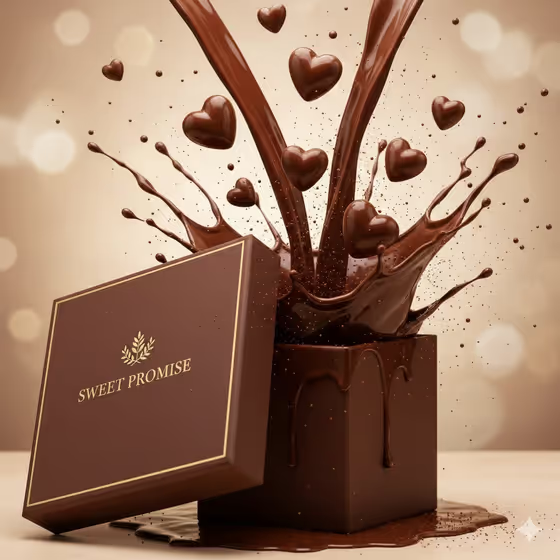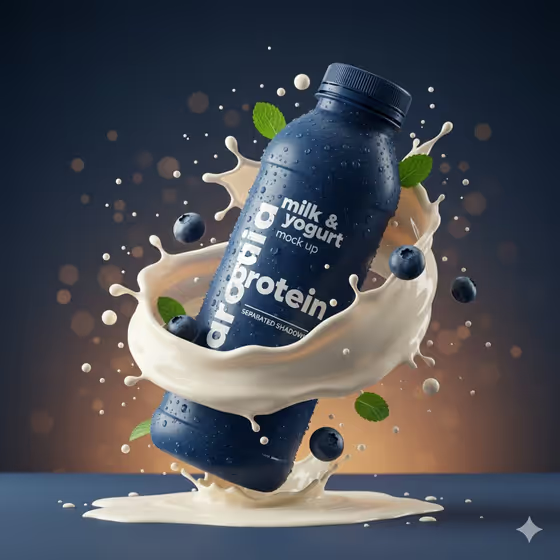
Protein Bottle Splash Shot turns a product description or reference into a high-speed commercial image with frozen liquid, floating details and controlled studio-style light. The cover shows a dark blue bottle tilted into a swirl of milk, with blueberries, mint leaves and droplets suspended around it against a blue-to-amber background.
It suits product marketers, small brands and creators who want a splash-style hero visual in a vertical 3:4 frame. You fill in a Product, a Subject and a Setting, and the template handles the lighting, depth and frozen-motion direction.
What works best as input
- The Product and Subject fields accept either a text description or a photo, and the template asks for 2 or more photos, so add clear reference images for the product and the subject.
- Use a sharp, evenly lit photo of the product with its shape and label fully visible, so the bottle, can or package keeps its real design.
- If you describe instead of upload, be concrete about material, color and form, for example 'a deep matte blue plastic bottle with condensation' rather than just 'a drink'.
- For the Subject, write a short respectful description such as 'a confident adult' or 'a poised creative professional', or add a clear photo of the person you have permission to use.
- Keep the references uncluttered. One clear product and one clear subject give the template a single focal point to work with.
How to use it
- Open the Protein Bottle Splash Shot template in Phosphene.
- Fill in Product with a description or a photo of your item, then fill in Subject the same way.
- Choose a Setting from the options, such as a clean studio, a misty natural landscape or a refined architectural interior.
- Generate the image, then review the 3:4 result for label legibility, splash placement and a clear focal point, and adjust your inputs if needed.
Tips for a better result
- Pick the Setting to match your brand mood. A clean studio keeps attention on the product, while a misty landscape gives a more atmospheric feel.
- Run the template again with a different Setting to get several variations of the same product for a campaign set.
- Name distinctive product details in your description, like color, cap style or surface droplets, since the template is built around crisp micro-detail and condensation.
- If you use photos, choose references with a similar lighting direction so the product and subject blend naturally.
Common mistakes
- Describing the Product too vaguely, such as 'a drink', which leaves the template guessing at shape, color and finish.
- Uploading a cluttered or low-resolution reference, which can blur label text and fine details.
- Packing the Subject field with several people or lots of props, which works against the template's single clear focal point.
FAQ
Can I use a photo instead of typing a description?
Yes for Product and Subject, since both accept a photo or a description. Setting is a choice from preset options, so it does not take a photo.
What shape will the image be?
The output is a vertical 3:4 image.
Do I need to fill in every field?
Product, Subject and Setting are all required, so complete all three before generating.
Will the label text on my product stay readable?
The template aims for sharp detail, but results depend on your reference. Use a clear, front-facing product photo and check the label in the generated image.